

The thing with small firms is that they can’t afford a full-time technician, but they still need their laptop faults to be fixed. Secure remote help can support them by letting a helper solve problems with no visit required.
Verizon’s 2026 data ties 26% of small and medium business breaches to exploited vulnerabilities, so patching and access control matter from day one. Read the full blog to know more about the session types, tools, security habits, and a simple plan that gets a small team up and running without a big budget.
Key Takeaways
- Remote support allows a technician to view and often control a computer over the internet to fix problems.
- Small teams save travel, shorten downtime, and gain expert help while avoiding a payroll hire.
- Pick attended sessions for ad hoc help and unattended access for machines nobody watches.
- Multi-factor authentication, patching, and session logs protect every connection you open.
- Pilot with a few computers, measure results, then expand to the complete office.
In practice, remote support for small businesses puts a technician on the line through a live connection, so nobody waits for an in-person visit. The helper sees your screen in real time and can usually take control to install updates, change settings, or fix errors.
Small firms see a half-day wait shrink into a short call. Staff return to work while the issue is still fresh.
Onsite Visits Compared With Remote Help
| Factor | Onsite visit | Remote help |
|---|---|---|
| Response time | Wait for travel | Starts within minutes |
| Travel cost | Fuel and time | None |
| Coverage | One site at a time | Any location |
| Hours | Business hours | Outside hours possible |
| Hardware faults | Fixed on the spot | Needs a visit or shipment |
Pro Tip: Keep a short list of the computers you support, with owners and system versions. It speeds up every request.
Big companies absorb downtime with little staff and spare machines. Small teams cannot, so each hour of lost work counts.
Many small firms also offer routine IT work to an outside partner. This explainer on managed IT consulting includes typical services, benefits, and use cases, a useful read before you decide who answers support requests.
Most small firms have to attend sessions first. Add unattended access later for machines that nobody sits at, such as reception kiosks or back office servers.
Screen viewing is the fallback where control is restricted, for example, on some mobile platforms. The helper then guides each step while you tap.
Common Session Types
| Type | How it works | Best for |
|---|---|---|
| Attended | User shares a code to start | Ad hoc help while the user is present |
| Unattended | Agent installed in advance | Servers, kiosks, and after-hours work |
| Screen viewing | Helper sees but cannot control | Platforms that restrict control |
Before you take any remote support, prepare your business by:
A structured review helps here. This guide to cybersecurity assessment practices outlines a five-step cycle: identify, assess, prioritize, remediate, and review.
Decide who takes each request before the first one arrives. Three models work best for small firms.
Whichever model you choose, document it. A written routine prevents confusion when the usual helper is away.
Trial two tools with actual requests before paying. The one your staff finds simplest is the one that will actually get used.
What to Check in a Trial
| Feature | Why it matters | How to test it |
|---|---|---|
| Easy start | Staff will not use complicated tools | Time a first connection |
| Cross-platform clients | Offices mix computers and phones | Connect from each device |
| File transfer | Moves logs and installers | Send a test file |
| Permissions | Limits who connects to what | Create a restricted user |
| Session logs | Provides an audit trail | Export a record |
| Chat and notes | Keeps context in one place | Run a mock request |
Each open connection is a door, so lock it well. One guide to cybersecurity best practices says multi-factor authentication restricts over 99% of credential-based attacks and that regular updates close known vulnerabilities.
Small firms face the same threats as larger ones, only with fewer defenders. The chart compares Verizon’s 2026 findings for small and medium businesses with the overall results.
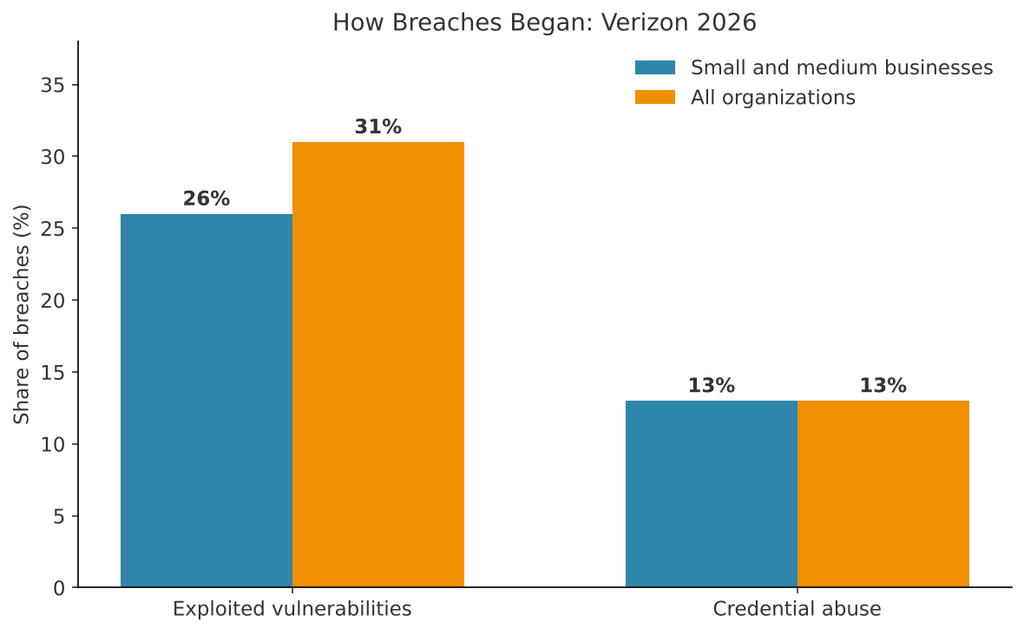
Source: Verizon 2026 Data Breach Investigations Report
Security Checklist for Remote Support
| Control | What it does | First step |
|---|---|---|
| Multi-factor authentication | Confirms identity twice | Require it for every helper |
| Patching | Closes known flaws | Turn on automatic updates |
| Least privilege | Limits what each person can access | Create role-based accounts |
| Session logs | Records every connection | Review them monthly |
| Antivirus | Catches malicious files | Install on every computer |
Layered protection covers antivirus. A tested antivirus software roundup compares products on price, features, and system impact, which helps when you equip many machines.
Review access every quarter. Remove accounts that nobody uses and verify that each remaining helper still needs their permissions.
Caution: Never give a session code to someone who contacted you first. Always start the request yourself.
Better tools free up time for higher-value work. An overview of smart digital tools argues that well-chosen systems help businesses work faster, and offered staff are trained to use them.
A week is sufficient to learn whether the tool suits your team. Note every snag during the pilot, because small annoyances in week one become big complaints by month three.
One Week to Launch
| Day | Action |
|---|---|
| Day 1 | List devices and name an owner |
| Day 2 | Shortlist two tools and start trials |
| Day 3 | Turn on multi-factor authentication and updates |
| Day 4 | Connect two test users |
| Day 5 | Write the request routine |
| Day 6 | Handle real requests |
| Day 7 | Review results and decide |
Some remote support mistakes to avoid are:
Measure a few numbers each month: requests handled, average time to fix, and repeat problems. They show whether the setup pays for itself.
If one issue keeps returning, fix the cause with a guide or an update. Otherwise, the same request will keep appearing in the queue.
Share the numbers with your team. People follow a routine more willingly when they can see it working.
This short video describes how remote desktop and remote support tools work for IT teams.
[VIDEO: “What Is Remote IT Support? Remote Desktop and Remote Support Tools Explained” — https://www.youtube.com/watch?v=mg3ilB-q_c4]
It covers how technicians connect to computers and where each tool type fits.
Remote help provides small firms expert support without the cost of staff or travel. Start with attended sessions, add unattended access when you want it, and secure every login.
Pilot the plan on a few computers, record what you save, and expand once the routine works. A small, steady rollout beats a rushed one
What does remote support involve for a small firm?
It is technical help delivered over a protected link. A technician sees your screen, guides you, or controls the computer to fix software problems without travelling to your office.
How much does it cost to start?
Costs vary by tool and number of users, so request quotes for your headcount. Compare subscription fees against travel time, downtime, and the price of outsourced visits.
Is remote support secure?
It is secure with strong sign-in checks, regular updates, limited permissions, and session logs. Always start requests yourself and never share codes with unknown callers.
Do I need technical staff to use it?
No. Attended sessions need only a code from the user. An outside provider can connect remotely, giving you expert help without hiring full-time technicians.
Can remote support fix hardware problems?
Not directly. It handles software faults, settings, and accounts. Failed drives, broken screens, and damaged ports still need a technician to handle the equipment in person.
