
The Invalid image file error confuses people a lot because even when the picture size looks normal, the Photos app on your gadget refuses to open the image. It shows ” Invalid image file” repeatedly. It doesn’t matter how many times you try to fix this issue; it will always show up again and again.
If you are facing the same error again and again, this guide can definitely help you; it provides all the solutions in methodical order. Every single step comes with a short reason why it happened and how it helps, so you can easily understand and jump to the point that fits your case. You can also use free photo repair tools to make it easier.
Every image file begins with a header (a small block of data). It works like the label on a moving box, telling the gallery or photos app what is inside and how to unpack it. When that label gets damaged, the app stops right there, even if the picture details underneath are still fine, and you witness this catastrophic “Invalid Image File” error.
That is why this mistake does not always mean the photo is gone. These are the common causes:
Once you know the reasons, choosing the right fix gets a lot easier.
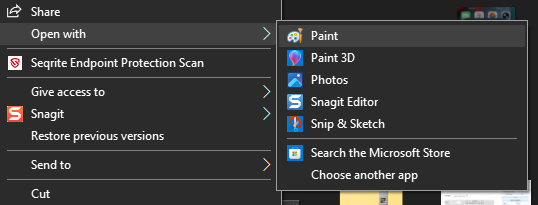
Photos app is only one of many viewers. Sometimes it cannot read a format, or the app itself is having a bad day. On my phone, I tried Google Photos and then Snapseed. PC users can right-click the image, select Open with, and pick Paint or any third-party image viewer such as IrfanView. A picture that opens elsewhere means the file is healthy and the app was to blame. Mine did not open anywhere, so I moved on.
Next, look at the file type. (Windows users: open File Explorer, tap View, and tick the box for file name extensions) iPhone photos usually end in .heic, and Windows requires the free HEIF Image Extensions from the Microsoft Store to read them.

Microsoft’s help page says the HEVC Video Extensions are important as well, and that one may cost a small fee.
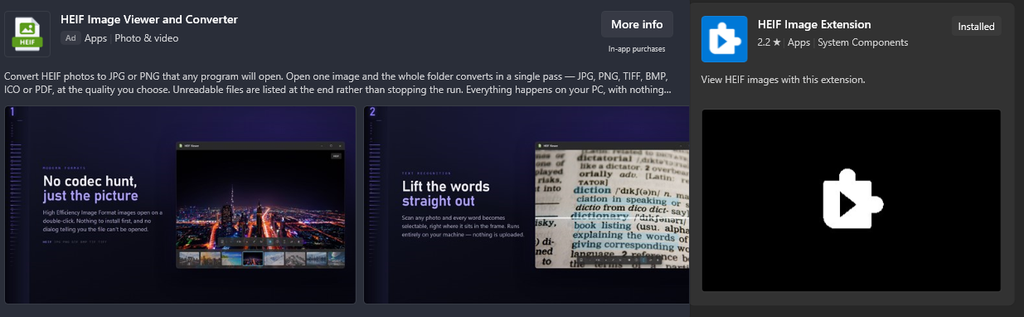
Please do not just rename .heic to .jpg, since that modifies the name and not the format. After the photo opens, Paint can save a copy as a JPEG
Broken copies are the most typical trigger of all. Download the photo again, or copy it from the phone or card once more, and let the transfer end before you unplug anything. A fresh copy that opens ends the story right there. In my case, the shared link had expired, which left me with the damaged file and nothing else.
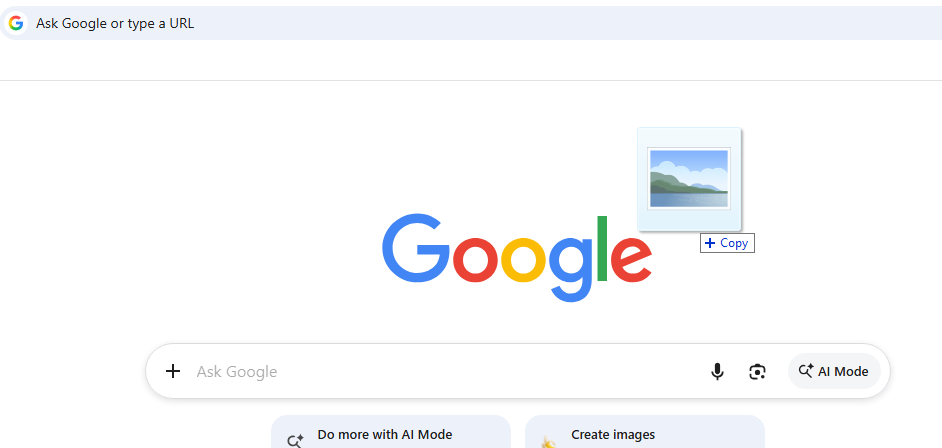
Browsers are quite forgiving with partly damaged JPG files. Drag the photo into a Chrome, Edge, or Firefox window on your PC. If it shows up, right-click it and pick Save image to keep a clean copy.
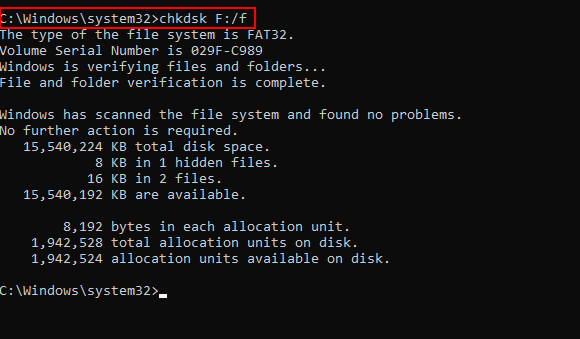
Drives with bad sectors can damage files again and again. Copy off anything essential first. Then open Command Prompt as administrator and type chkdsk E: /f, replacing E with your own drive letter. The /f switch fixes file system errors. Next, extend the command to chkdsk E: /f /r. The /r command now hunts for bad sectors and saves whatever information it can read. It can take some time, so give it some room to finish.
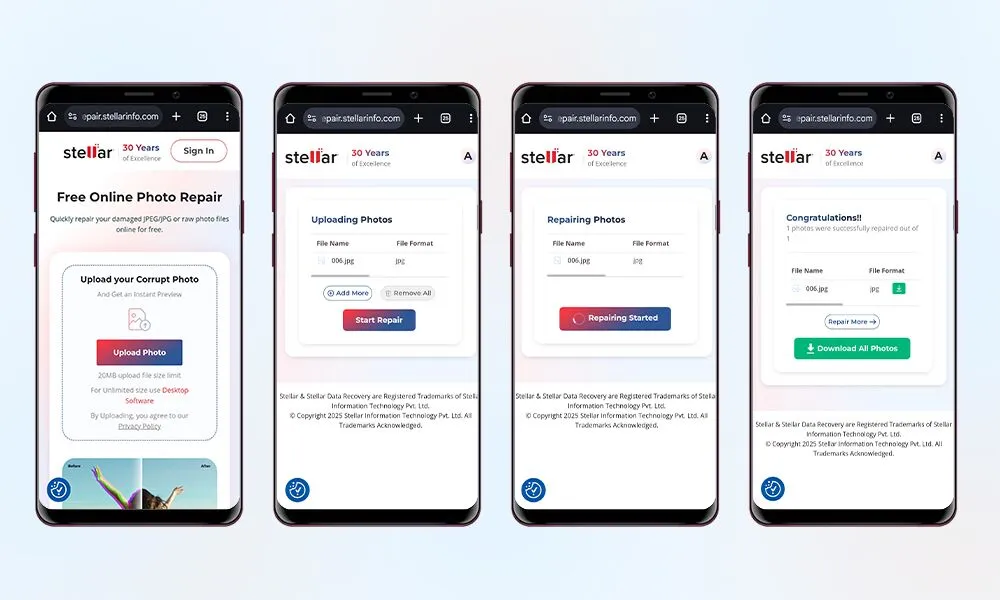
Nothing so far had worked for me. This told me the damage sat inside the document, so no viewer would ever open it. Since I was away from my laptop, I tried an online image repair tool Stellar Online Photo Repair, right on my smartphone.
It runs in the browser. There is nothing to install, which also means it works on any smartphone (Android or iPhone) or Desktop as long as a browser is there. I followed these steps:
Several pieces of information made me comfortable using it. Stellar rebuilds the damaged parts of the file, header issues included, and keeps the original resolution. It reads JPG, HEIC, TIFF, and RAW formats such as DNG, NEF, and CR2, so shots from iPhones, Samsung phones, drones, and DSLRs are covered.
As per their claims, uploads are encrypted and removed automatically, which is pretty reassuring. The free plan repairs one photo up to 20 MB, and the download link only stays live for three hours, so save the result fast if you are on the free plan.
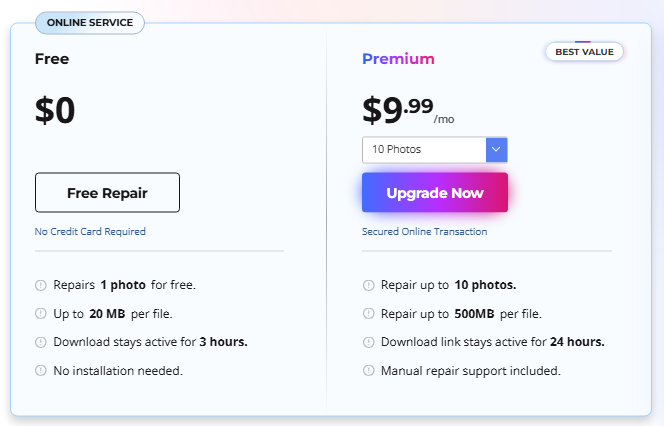
Premium plan charges a modest $9.99/month and extends the limit to 500 MB per file.
Online repair comes with limits on file size and count. A pile of big RAW files or a whole folder of broken shots calls for the desktop software instead. If you have a matching requirement, you can try out the Stellar Repair for Photo desktop tool; it has no file size limit, and it repairs photos in batches of 100s. The tool supports over 30+ image file formats, including RAW files: JPEG, ARW, CR2, CR3, CRW, ERF, MXPEG, TIFF, DNG, HEIC, MRW, NEF, NRW, and many more.
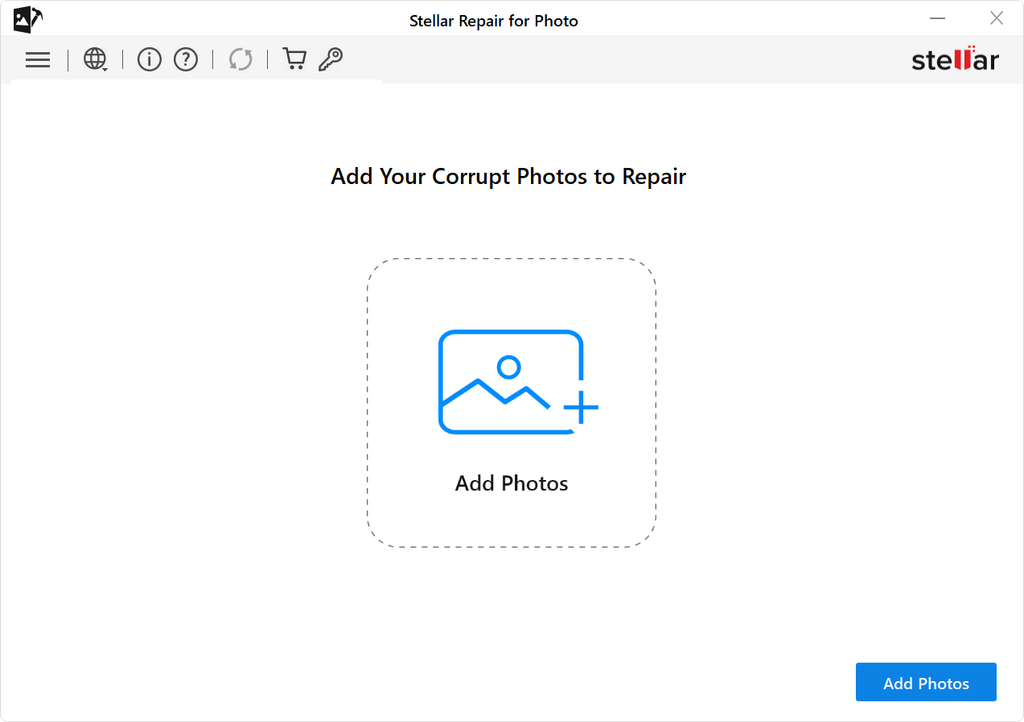
All you have to do is install the software on your PC, drag the damaged or corrupted photos, and click Repair. Each fixed photo can be previewed before it goes into a safe folder. A free download with preview is available, so you can inspect the result before paying for anything.
Nearly all “invalid image file” errors can be fixed. However, some simple habits keep this from coming back. Eject drives and cards safely, let downloads finish, and back up the shots you care about. Test every fix on a copy, and keep the broken original untouched.
Next time Photos throws this error, you will know exactly where to start. Just follow the order. If you are in a rush, try the free online photo repair tool. Otherwise, you can begin with the free checks: try another photo viewer app, a file type check, or open the image with your browser. Or a fresh copy. If the photo still will not open, the file itself is damaged, and a photo repair tool is the right call.
Ans: An invalid file type means the file you are trying to open does not match the format that is required by the software or app you are using.
Ans: You can fix the issue that occurs when you try to open a file by changing the file permissions, adjusting administrator rights, and running built-in tools.
Ans:You can test the file in another program, reset your photo viewer, or verify its extensions to fix the image format if it’s invalid or unsupported.
