
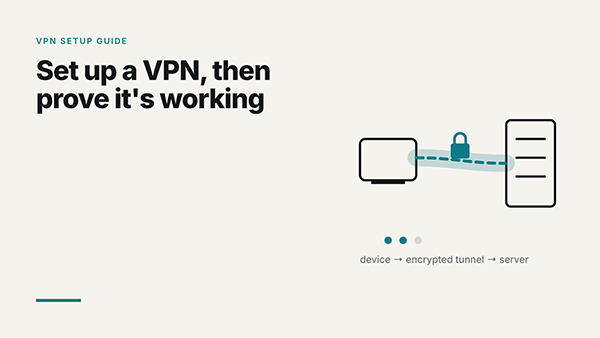
When the button turns green, most VPN setup guides stop. The problem is hardly visible and most of the time goes unnoticed. Your DNS lookups keep going to your internet provider. Your browser hands out your real IP address through WebRTC. Or the tunnel drops at 2 a.m., and your laptop carries on without it, and nothing tells you.
Read the full guide to learn more.
Key Takeaways
- Setting up a VPN with an app takes about five minutes on Windows, macOS, or Android. Built-in system settings take closer to ten minutes and often come without a kill switch.
- A green “Connected” button is not proof. Three checks (IP, DNS, and WebRTC) take another ten minutes and tell you whether the tunnel is doing its job.
- Turn on the VPN kill switch and auto-connect for public Wi-Fi before you close the app for the first time.
- When a check fails, the fix is often one setting, not a new VPN.
There are three ways to make a VPN run. They aren’t equal.
| Method | Time | Kill switch | Best for |
| Provider’s app | About 5 minutes | Usually built in | Laptops and phones |
| Built-in OS settings (IKEv2) | About 10 minutes | No | Work devices where you can’t install apps |
| Router | 30+ minutes, once | Depends on firmware | Smart TVs, consoles, and other devices that can’t run VPN apps |
For most people, the app wins. It picks the protocol, sends DNS through the tunnel, and offers you a kill switch. Manual setup is the fallback for locked-down machines. Microsoft documents this in its guide to connecting to a VPN in Windows, and Apple has the equivalent for setting up a VPN connection on a Mac.
The steps hardly differ between systems. What differs is the permission prompt, and that’s where people get stuck.
Windows. Download the installer from the provider’s own website, not a mirror or a “free download” portal. During install, Windows asks to add a network adapter. Say yes. That adapter is the tunnel. Sign in and click Connect.
macOS. Keep the app in Applications and open it. macOS asks whether to allow a VPN configuration. Approve it with your password or Touch ID. If you click “Don’t Allow” by accident, the app will connect to nothing and won’t tell you why. Reinstall and approve it this time.
Android. Install from Google Play, sign in, tap Connect, and accept the system connection request. A key icon in the status bar means the tunnel is up. One detail trips people up: Android’s own “Always-on VPN” switch only appears for VPNs you add in Settings. As Google’s Android help page notes, you won’t get that option for a VPN set up through an app. App-based VPNs have their own auto-connect setting rather.
iPhone and iPad. Same pattern: install from the App Store, sign in, tap Connect, allow the VPN configuration with Face ID or your passcode.
If you want the long version, with manual IKEv2 fields, router setup, and fixes for connections that won’t start, here’s a device-by-device guide on how to set up a VPN that includes each system screen by screen.
Default settings are designed so that nothing breaks on day one. They aren’t built for the worst case.
Leave the protocol on the default unless something breaks; on most modern apps, that’s WireGuard, which is fast and has a small, well-reviewed codebase. If a hotel or office network refuses to connect, switch to OpenVPN over TCP. It looks more like simple web traffic and gets through stricter firewalls.
This is the part most guides ignore. Do it once now, and again after major OS or browser updates.
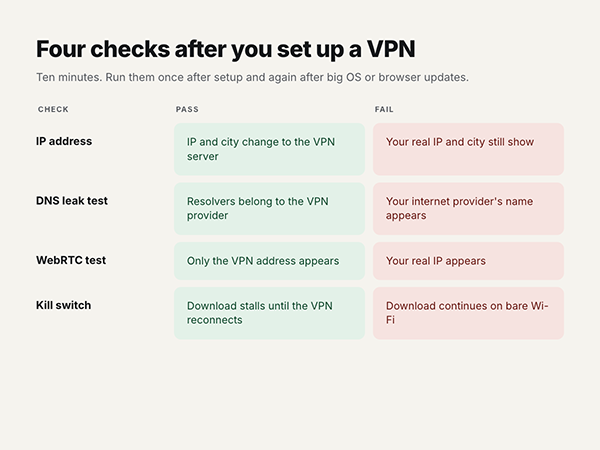
Check 1: Your IP address. Disconnect the VPN and open any IP lookup site. Write down your IP and city. Connect, reload the page. You should see a different IP and the location of the server you picked. If nothing changes, your browser traffic isn’t going through the tunnel. Evaluate that split tunneling hasn’t excluded your browser.
Check 2: DNS leaks. DNS is the lookup that turns a site name into an address, and it can show every site you visit. With the VPN on, run a DNS leak test. The servers listed should belong to your VPN provider. If your internet provider’s name shows up, your lookups are ignoring the tunnel. One caveat: if you’ve set a custom DNS in your browser (Chrome calls it “Use secure DNS”), the test may show that resolver rather. That isn’t your ISP, but it does mean the browser goes around the VPN’s resolver.
Check 3: WebRTC. Browsers use WebRTC for video calls, and it can expose your actual IP even while the VPN is on. Run a WebRTC leak test. Only the VPN’s address should appear.
Bonus: test the kill switch. Begin a large download, then turn Wi-Fi off and on. The download should stall until the VPN reconnects, not carry on over your bare connection.
Here’s what the cause is and how you can fix it.
| What you see | Likely cause | Fix |
| IP and city didn’t change | Not connected, or split tunneling excludes the browser | Reconnect; remove the browser from split tunneling |
| Your ISP shows in the DNS test | DNS isn’t routed through the tunnel | Turn on DNS leak protection in the app, reconnect |
| Real IP appears in the WebRTC test | Browser shows local network details | Update the browser; limit WebRTC in its settings or with an extension |
| VPN won’t connect on hotel or office Wi-Fi | Network blocks UDP traffic | Switch to OpenVPN over TCP |
| Constant captchas, some sites refuse to load | The shared server IP is flagged | Select another server in the same country |
A VPN encrypts traffic between your device and the VPN server, and it swaps your IP address for the server’s. That’s the complete job. It doesn’t stop a phishing page from collecting a password you type into it, and it doesn’t stop Google from checking you when you’re signed in to Google.
That’s exactly why the three checks matter. They verify the part the VPN is responsible for, so you can stop wondering and get on with your day.
Ans: Yes, but look at who pays for the servers. Free VPN apps often cover costs with ads or by collecting data. A paid plan, or your own server, avoids that trade.
Ans: Yes. You can run WireGuard or OpenVPN on a home router, a Raspberry Pi, or a rented cloud server. It encrypts your traffic on public Wi-Fi, but websites will see your server’s IP, which is tied to you, so it hides less than a commercial VPN.
Ans: Yes, through cookies, logged-in accounts, and browser fingerprinting. A VPN hides your IP and encrypts your connection; it doesn’t make you anonymous.
Ans: VPNs are legal in the US, the UK, the EU, and most other countries. A handful of countries, including China, restrict them. What you do through a VPN is still covered by the same laws as without one.
