
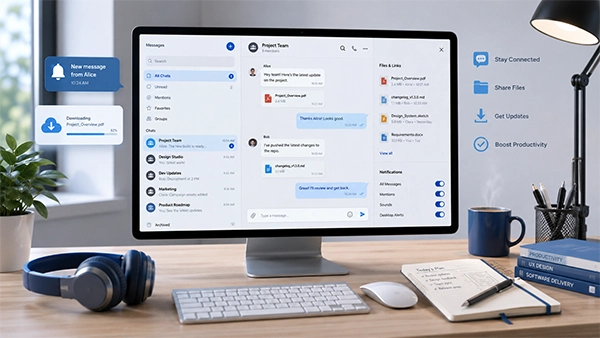
Desktop messaging can improve productivity while introducing storage, notification, and synchronization considerations.
Desktop messaging is something that can make your everyday communication easy and much better to handle with. A full keyboard can help you improve your speed, and carry out other tsks such as reviewing documents much easier.
However, installing a messaging app on Windows is only the beginning.
What follows after that is using consumer storage space in order to make sure the notifications are aligned well. You can also begin with aligning the unnecessary data and leaving the signed in account.
This guide explains the most important steps for setting up a desktop messaging application efficiently and securely.
The first step is identifying the correct version for the computer.
Messaging platforms may offer several ways to use the same account, including:
These versions may look alike but behave differently.
A native Windows application, for example, may provide deeper system integration, desktop alerts, local file storage, and automatic startup options. A browser version may require less installation effort but depend on browser sessions and browser notification permissions.
Before downloading anything, users should verify:
Users looking for localized information before choosing a desktop client can review a 纸飞机下载指南 to understand the available setup direction before proceeding with installation.
The same principle applies to any messaging application: select the version that matches both the operating system and the way the computer will actually be operated.
Software searches often produce many third-party download sites.
Some mirrors may simply redistribute the original installer, while others may provide older versions, modified packages, additional download managers, or unclear links.
For a messaging application that handles private conversations and account credentials, the source of the installer deserves particular care.
Before running a downloaded file, verify:
Unexpected behavior during the download process should be treated carefully.
For example, if clicking one download button opens multiple advertising pages or downloads an unrelated executable, it is better to cancel the process and find another website.
A clean installation begins with a reliable installer.
Desktop messaging apps can accumulate far more data than many users anticipate.
A single conversation may include:
On an active account, these files can gradually use gigabytes of disk space.
During initial setup, determine where downloaded attachments will be stored.
Common locations include:
A dedicated messaging download folder can make file management simpler.
For example: Documents > Messaging Downloads or Downloads > Chat Files.
This distinguishes communication files from installers, browser downloads, and unrelated documents.
Users working with sensitive files may also choose a folder that is included in their normal backup or encryption process.
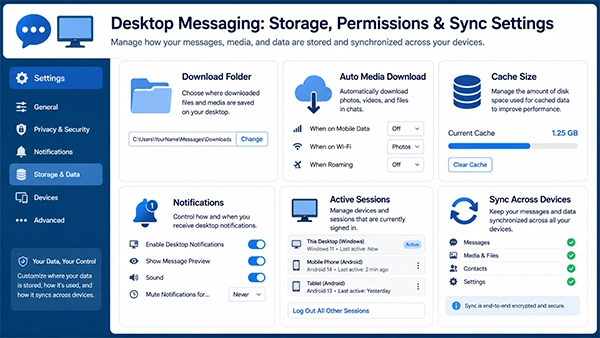
Key desktop messaging settings include download folders, automatic media downloads, cache size, notifications, active sessions, and synchronization.
A messaging application may store two different types of local information:
Saved files are documents or media that the user intentionally stores.
Cached files are temporary copies stored by the application to improve loading speed and reduce repeated network transfers.
These are not always located in the same location.
A user may clean the Windows Downloads folder and still discover that the messaging application uses several gigabytes because images and videos remain in the application cache.
For this reason, verify whether the desktop client provides storage-management controls.
Useful settings may contain:
Clearing cache normally does not mean deleting cloud-based conversations, but users should always read the application’s instructions before removing data.
Automatic media download is convenient, but it is also one of the most common reasons messaging apps use excessive storage.
A busy group may get dozens of images, videos, documents, and audio files every day.
If every file downloads automatically, a desktop computer can collect a large amount of unnecessary data.
Where the application allows it, consider setting automatic downloads separately for:
A practical setup may allow small images to download automatically while requiring manual confirmation for videos and large documents.
This also gives users more control over which files are stored offline.
Desktop notifications are useful, but they can expose more information than anticipated.
A notification may display:
On a personal computer, that may be fine.
On a work computer, shared computer, classroom device, or computer connected to a projector, message previews can create privacy concerns.
Check notification settings immediately after installation.
Depending on the environment, users may opt to:
The best configuration depends on how public the screen is and how frequently messages arrive.
Many desktop messaging applications automatically open when Windows starts.
This makes the application convenient to access, but it also increases startup activity and keeps the account active whenever the computer is running.
Users should determine whether automatic startup is actually necessary.
On a personal work computer used every day, automatic startup may be helpful.
On a temporary or shared machine, it may be wiser to disable it.
Windows startup settings can usually be checked through Settings > Apps > Startup or through Task Manager, depending on the Windows version.
Disabling automatic startup does not normally uninstall the application. It simply prevents it from launching automatically when the user logs into Windows.
One major advantage of modern messaging platforms is the ability to access the same account on a phone, laptop, desktop computer, or tablet.
That convenience also means users may gradually collect active sessions.
For example, an account may still be linked to:
After setting up a new desktop installation, check active devices if the application supports session management.
Delete sessions that are:
Users who need more help understanding desktop-specific setup steps can consult to a 纸飞机电脑版使用教程 while reviewing the configuration of a newly installed desktop client.
Regular session reviews are especially helpful after replacing or selling a computer.
Messaging applications contain more than chats.
They may also expose:
Therefore, installing a messaging application on a shared computer requires additional measures.
Before leaving the computer permanently:
Closing the application window is not the same as signing out.
Some desktop clients continue running in the system tray even after their main window has been shut.
Not every setting automatically syncs between devices.
A user may configure privacy or notification preferences on a phone and expect the desktop client will behave identically.
That is not always the situation.
After installing a desktop version, review:
This is particularly important for users who move frequently between mobile and desktop environments.
Consistency reduces confusion and makes account behavior more consistent.
If the messaging application supports calls, Windows may ask microphone and camera access.
These permissions are necessary for voice or video communication but may not be needed for users who only send text messages.
Windows privacy settings allow users to check which applications have access to these devices.
If calls are not required, permissions can often remain off until needed.
When troubleshooting a call that has no sound or video, checking Windows permissions should be one of the first actions.
Messaging applications change frequently.
Updates may contain :
Running an outdated desktop client can cause problems when the service changes its authentication or synchronization systems.
Where possible, keep automatic updates active.
If updates are installed manually, return to the verified software source rather than searching for unknown update packages.
Users should also avoid downloading unofficial “patched” or “modified” versions simply to gain additional features.
Let us know explore how to troubleshoot common desktop messaging platforms:
Check application notification settings, Windows notification permissions, Focus mode, muted chats, and background application options.
Verify the internet connection, available disk space, download folder permissions, automatic media settings, and antivirus or firewall limitations.
Review cache size, automatic video downloads, large group media, saved files, and retention options.
Possible causes include network instability, outdated software, account security changes, session expiration, or device authorization needs.
Check both the application’s settings and Windows privacy controls. A problem that appears to come from the messaging app may actually be caused by operating-system settings.
A short checklist makes new installations easier to check.
After setting up a desktop messaging client, verify that:
This process usually takes only a few minutes.
A desktop messaging application should not be treated as just another program to install and ignore.
Because it handles conversations, files, notifications, account sessions, and potentially voice or video calls, its configuration affects both usability and security.
The most reliable approach is to begin with the correct desktop version, choose a verified download source, understand where files are stored, limit unnecessary automatic downloads, check permissions, and keep track of active devices.
Once these settings are configured correctly, a desktop messaging client can become a useful extension of the mobile experience without creating unnecessary storage, privacy, or account-management issues.
Ans: To sync text messages with your car’s Ford SYNC system, go to your phone’s Bluetooth settings, tap the info icon (i) or gear icon next to your connected vehicle, and turn on Show Notifications or Message Access.
Ans: To legally and legitimately get text messages from another device sent to your phone, you must have physical access to that device and permission to set up built-in sharing features or linked web apps like Apple’s Text Message Forwarding or Google Messages.
Ans: To delete text messages on Ford SYNC 3, delete the message directly from your mobile phone, then tap the Refresh button on the SYNC 3 text message screen.
Ans: To show read receipts for your text messages, you need to turn on “Send Read Receipts” in your iPhone’s iMessage settings or enable “RCS Chats” and read receipts inside your Android messaging app.
