

Windows installations aren’t that smooth when you’re dealing with upgrade errors, boot problems, or a computer that cannot access Windows Update. In that case, go ahead and download Windows 11 26H2 ISO. An ISO file packages Windows setup files into a single disk image, allowing you to create bootable USB media or start an installation directly from your existing system. Microsoft recommends a blank USB drive with at least 8GB of space for installation media. However, downloading the correct ISO is only the beginning. In this guide, you’ll learn how to prepare your computer, create installation media, manage disk partitions, and avoid common mistakes.
Before starting the download, prepare your computer and installation setup. A large ISO file requires enough free storage, while creating a bootable USB also requires a suitable flash drive.
Consider these points in mind:
Backing up your files is important if you plan to delete or format existing partitions during installation. In case you lose files, use file recovery solutions to recover them.
The safest method is to use Microsoft’s official Windows download page or another trusted source that provides the correct Windows 11 26H2 installation file. Avoid downloading ISO files from unknown websites because modified setup files can include unwanted software or other changes.
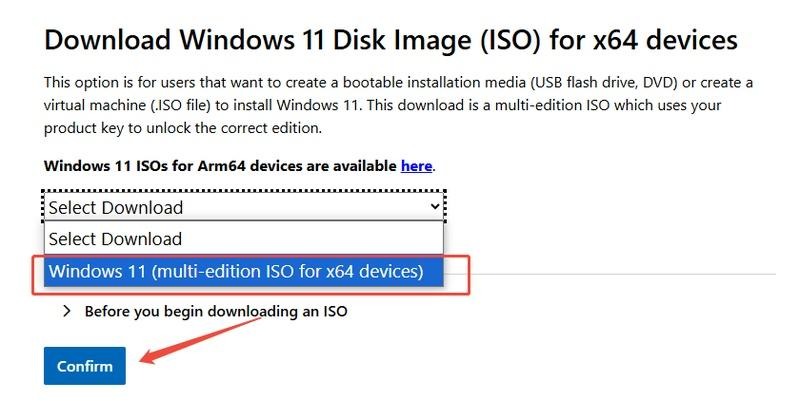
Start by selecting the Windows edition that matches your license and computer. Windows installation media may offer different editions, so check your current Windows version before downloading. If you use a licensed Windows PC, make sure the edition you install matches your existing activation where applicable. Picking the wrong edition can create activation problems later.
The next drop-down menu asks you to choose the language you want Windows to use. Select the language that you normally use on your computer. You should also consider your keyboard layout because Windows can use different language and regional settings.
After selecting your preferences, download the ISO file and wait until the process finishes. Do not shut down your computer or interrupt the connection while downloading.
For critical installations, you can also verify the downloaded file’s integrity when an official checksum is available. This check helps confirm that the file did not become damaged during the download.
After downloading the ISO, you can make a bootable USB drive. This option works well when you want to install Windows on a computer that cannot start normally or when you need the same installation media for several computers. First, connect a suitable USB drive to your PC. Remember that creating installation media can erase the existing contents of the USB drive, so copy any important files from it first.
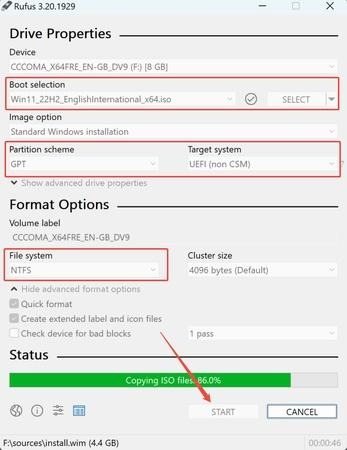
Employ a trusted Windows media creation method or another reliable ISO-to-USB tool. Select the Windows 11 26H2 ISO, choose the USB drive, and start the creation process.
Once the operation finishes, restart the target computer and open its boot menu. Select the USB drive and follow the Windows Setup instructions.
Disk preparation is an important step in the entire clean Windows setup process. Before you delete or format anything, check which drive contains your current Windows installation and identify the partitions that contain personal data.
You must:
A partition management tool can make this preparation less complicated. 4DDiG Partition Manager can help users manage partitions and organize disk space before Windows installation. You can use it in your Windows installation prep to inspect, resize, create, remove, or format partitions. For users searching for a Windows upgrade partition manager, 4DDiG Partition Manager can provide useful disk-management features before you begin the Windows setup process.
Even when you have a valid ISO, setup can fail because of USB, disk, or hardware settings. Knowing the common causes can save time.
If your PC ignores the USB drive, open the boot menu and confirm that you selected the correct device. You may also need to check BIOS or UEFI boot settings.
If the USB does not appear at all, recreate the installation media using a different USB drive or confirm that the media creation process completed correctly.
Windows Setup may show an error when the disk uses an incompatible partition type. Modern Windows 11 systems commonly use UEFI with GPT, so check your system configuration before changing partitions. Do not convert or delete partitions without backing up your data first because these operations can remove files on the disk.
Windows needs enough space to install its system files and complete setup. If the target partition doesn’t have sufficient free space, remove unnecessary files or use disk-management tools to reorganize available space.
Downloading the Windows 11 26H2 ISO is solely one part of a successful Windows installation. You also need to choose the correct ISO, create installation media carefully, back up important files, and check your disk configuration before initiating a clean setup. If you prepare the USB and partitions correctly, you can reduce common setup errors and avoid unnecessary data loss. A careful disk check before installation can also help you identify partition problems before they fail Windows Setup.
Ans: It’s a disk image containing Windows setup files.
Ans: Check Microsoft’s official Windows Insider ISO download page for the 26H2 preview release.
Ans: Microsoft recommends a blank USB flash drive with at least 8GB of storage for Windows installation media.
