
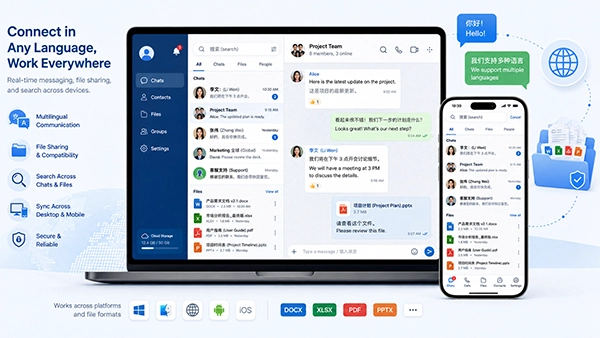
Message applications are part of routine communications, particularly among those that use multiple languages and devices. You may be chatting in Chinese via your phone, replying in English from your laptop, and sharing files with your colleagues in other countries within hours.
This kind of simplicity makes things complicated very soon when language preferences, keyboard, notifications, or file names do not behave the way they are expected to. Proper configuration of a multilingual application requires more than just installing and logging into it.
There are several settings to be considered before getting started with a message application. From preferences and search to privacy and device synchronization, this article will guide you through some settings to consider.
Before modifying language preferences, make sure the correct version of the application has been installed.
Modern messaging services may provide separate versions for:
Although these versions connect to the same communication service, they might have different settings and interfaces.
A setting available on Android, for example, it might be located in another menu on Windows. A desktop application may also include storage, startup, keyboard, and download options that do not exist on the mobile version.
Before installation, users should confirm:
Users who are new to the platform can consult a Potato app使用指南 when reviewing basic setup options and understanding how the application is intended to work across supported devices.
The same principle applies to any multilingual messaging platform: install the correct version before trying to troubleshoot language or synchronization problems.
Language is one of the first settings multilingual users should review.
If there are several interface languages available for an application, choosing the preferred language early makes later configuration easier because menus, privacy controls, notification options, and permission descriptions become easier to understand.
Interface-language settings may affect:
Users should distinguish between the application interface language and the language used in conversations.
Changing the interface to Chinese does not translate messages written in English, and changing the device language does not necessarily change the language of every application.
While some applications automatically use the same language as the operating system, other applications keep their independent language settings.
For this reason, users who regularly switch between languages should check both the device settings and the messaging application’s internal settings.
A common assumption is that changing a setting on a phone automatically changes the same setting on the desktop client.
That is not always the case.
Some of the preferences set at account level can sync with the cloud, whereas some others can be set locally to the device.
Settings that may differ between devices include:
For example, a user may configure the mobile app in Chinese while keeping the Windows client in English for work.
This can be useful, but it can also create confusion when instructions refer to menu names that look different on each device.
When installing a new desktop or mobile client, check the important settings manually rather than assuming that all is in sync.
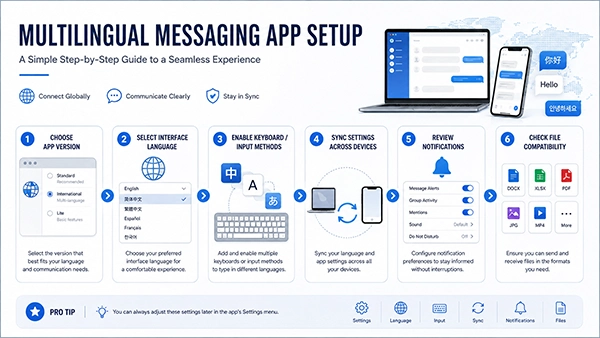
Notifications deserve special attention when users participate in groups and conversations across several languages.
A notification may display:
Before using any notifications through the desktop or lock screen, ensure that the Chinese characters and other writing systems are displayed correctly.
Also consider privacy.
On a personal phone, full message previews may be convenient. On a shared computer or work laptop, the same setting could reveal private conversations whenever a notification appears.
Users may prefer to:
Multilingual users participate in more groups and channels since each community has its own language. It is possible that selective notification settings will have an important effect on everyday usability.
The ability to see the language does not necessarily mean the efficient use of typing it.
Users who communicate in Chinese and English may need multiple keyboards or input methods configured at the operating-system level.
On Windows, users can install additional language input options and switch between them using keyboard shortcuts.
In mobile phones, multiple languages for a keyboard can be set in the keyboard settings.
After configuration, test:
This is especially useful before using the messaging application for professional communication.
Incorrect input-method settings can lead to unexpected punctuation, missing characters, or slow switching between languages.
Search is an important but often overlooked part of multilingual messaging.
A user may remember a conversation in Chinese but search using an English keyword, or may need to locate a file with a Chinese filename.
Test whether the application can reliably search:
Search behavior can vary depending on how the application indexes text.
Spacing also matters. English generally uses spaces between words, while Chinese text may not. An application’s search system may handle these formats differently.
In case there are several conversations in different languages within a group, filenames and use of terminology will help locating the needed information.
When looking for a specific language version of the messaging application, users can find lots of sites offering them various localized installers.
This is where source verification becomes important.
A localized interface should normally be provided through the application’s own language system or through a legitimate version distributed by the software provider.
Users need to be careful when downloading modified installers simply because the filename contains terms such as “Chinese version,” “translated edition,” or “localized build.”
Before downloading, check:
Users specifically looking for a Chinese-language setup can review a Potato中文版下载 resource while checking the appropriate version and language options before installation.
The important point is not merely obtaining a Chinese interface. The application should also remain updatable and compatible with the normal account system.
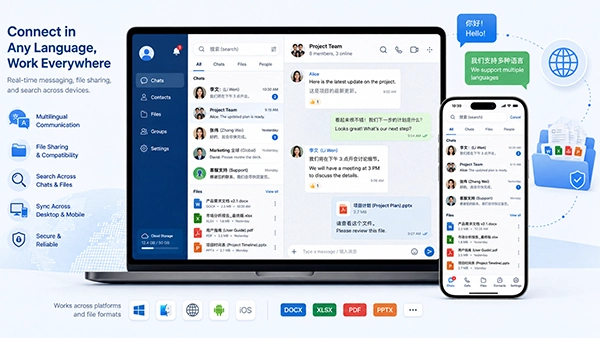
Messaging apps are frequently used for exchanging files, not just text.
Multilingual users should test how the application handles filenames containing Chinese characters.
For example:
Possible problems can appear when files move between:
It should be noted that modern systems usually support Unicode filenames, but it is still important to test the process to make sure that the application works properly with your important documents.
Pay attention to whether:
For business use, consistent file-naming rules can prevent confusion.
Multilingual communities can produce large volumes of images, documents, videos, and voice messages.
Automatic downloads should therefore be configured deliberately.
A messaging app may allow users to control media separately for:
A reasonable configuration might automatically download small images while requiring manual approval for videos and large files.
This offers several advantages:
Desktop users should also identify the folder where files are stored.
Otherwise, documents with different languages and naming styles may become scattered across the Downloads directory.
Using the same account across several devices increases convenience but also creates more places where personal information can appear.
Review privacy settings on each device.
Important areas include:
Users working across languages may also use the same account for personal and professional communication.
That makes notification privacy particularly important.
For example, a Windows client used during work hours may need more restrictive notification previews than a personal phone.
Settings should match the environment of each device rather than being identical simply for the sake of consistency.
Accounts with multidevice messaging may be connected to computers for extended periods of time.
Users should periodically review active sessions and remove devices they no longer use.
This is particularly important after:
If you have access to session details in your messaging app, make sure to look at device names, locations, and activity history.
An unfamiliar session should be investigated rather than ignored.
It is impossible to achieve perfect consistency since mobile and desktop operating systems are different.
However, several settings should be deliberately aligned.
A useful checklist includes:
Users can choose to set some things differently on purpose.
For example, automatic image downloads may be acceptable on a desktop with large storage but disabled on a mobile device with limited space.
Consistency should therefore mean predictable behavior, not necessarily identical settings.
For setting up the messaging app to be installed on a new gadget, the following sequence will make the task easier for you:
This checklist proves helpful, especially for people who switch gadgets from time to time.
Multilingual messaging is not only about translating the user interface.
The successful implementation also requires proper input, notifications, search procedures, file compatibility, storage, permissions, and synchronization capabilities.
Users who communicate in Chinese, English, and other languages should configure these areas deliberately rather than relying entirely on default settings.
The most effective approach is to begin with the correct application version, establish the preferred interface language, verify character and file compatibility, and then align the important privacy and communication settings across mobile and desktop devices.
After that, the switching of languages and devices would be much easier and would help the messaging app to become a tool for communication instead of a problem itself.
Ans: Download the right version of the application, select your preferred language for the user interface, activate the necessary keyboard languages, and then test messaging, searching, and file transfers.
Ans: Yes, certain messaging applications allow me to change the language of the interface depending on the device I am using.
Ans: I need to activate the input languages in Chinese and English in the messaging application.
Ans: Go through active sessions whenever you have replaced a device, are travelling, or are using a temporary computer and delete sessions that you no longer recognize.
