
A Cyclic Redundancy Check (CRC) error makes it too complicated, or most of the time impossible, for you to access your files or hard drive partitions on Windows. This error usually pops up when you try to transfer your data via a USB flash drive or an unzipped archive.
Most people care less about fixing the error, which makes it impossible to access their own files.
It doesn’t mean that your file is permanently damaged, but the reason for the error can be a faulty cable, a corrupted file, or any unreliable source like that. While the reason is a damaged storage device or an unreadable disk in some cases.
This article bring insights on how you can recover data from CRC error, what Windows tools can help you. When to use data recovery software, and what to avoid.
Cyclic Redundancy Check is an error detection technology that enables the computer to determine whether data has become corrupted during the process of storage or transmission.
The computer calculations are generally based on the information, and it compares the result with the expected value. A different value means the data integrity check has failed.
The following message may appear in the Windows system:
“Error 0x80070017: Data error (cyclic redundancy check).”
It may occur while trying to:
If there is a CRC error, Windows will be unable to open the data in question normally. It happens because there is still a chance that the data is available on the disk itself.
The key point here is the difference between inaccessible data and overwritten or destroyed data. In the case of logical corruption or partially readable sectors, recovery is possible, although there is no guarantee of success.
The occurrence of a CRC error does not guarantee that the files are deleted. It can be treated as an indicator that shows Windows was unable to read or check some information.
The error can prevent you from accessing the files in most cases. Know these common reasons for a CRC error to be prepared.
A hard drive saves data in sector form. Windows will not be able to access the files saved in areas where sectors cannot be read.
This happens because of physical damage or any other hardware failure. SSDs also become problematic with controller problems that make it impossible to get that data from a bad sector. And bad sectors end up causing a CRC error.
Windows uses file systems like NTFS and exFAT for organizing data. These file structures become corrupted when an unexpected shutdown, interruption during writing, or improper removal of a storage device happens.
The operating system will not be able to access the partition or its files if it is unable to interpret the corrupted file structure properly.
Logical errors are not impossible to fix, but it is suggested to recover important files before doing so.
While using an external hard drive to transfer data, a lack of power supply or an unstable port or USB hub shows up most of the time.
If the CRC error is happening due to the use of one specific cable or port, then the connection could be the problem. Trying out a different cable or connecting to a different port could solve the problem.
Using a failing storage device is harder to read and brings CRC errors with noise, freezing, lost folders, and disconnects.
Do not rely on 10 repairs to keep using the same drive, as constant use can strain the device and decrease the probability of recovering your data.
When the storage medium is perfect, the downloaded file itself can be incomplete, the archive could be corrupted, or the transfer process could have been interrupted before completion.
Get a copy of the file if the problem is limited to a single file. It is also worth looking into the disk and file system if many unrelated files are generating CRC errors.
Start with the physical connection check when the CRC error happens on an external hardware device.
Connect the device to a different computer to notice a specific issue in the original PC.
If the drive becomes accessible, copy your most important files to another drive, and solve the issue as soon as you can.
When the error happens because of any existing file, copy the accessible data before trying several solutions.
This solution works if only some files or sectors of the drive are affected. It will also help you save the data before troubleshooting the problem.
If Windows keeps freezing or disconnecting the drive, then it is suggested to stop the process. Trying to copy an unreadable file several times will not work.
If standard file copying fails to recover the necessary data, use appropriate recovery software or consult specialists.
In cases where the data becomes inaccessible due to logical corruption, accidental loss, or specific disk errors, data recovery software could prove useful in finding and retrieving the data.
The software is able to search a supported storage device for files that Windows cannot normally access. The program itself can detect existing files, lost file system entries, or recoverable file content.
Windows data recovery software could be used by a user who faces difficulties accessing their files due to CRC errors.
The exact interface and options depend on the application, but the general process is similar.
Download and Installation: Download the Stellar Data Recovery software from its official website and install it on your system.
Start the Stellar Data Recovery software and select the type of information you want to recover, such as photos, videos, documents, etc.
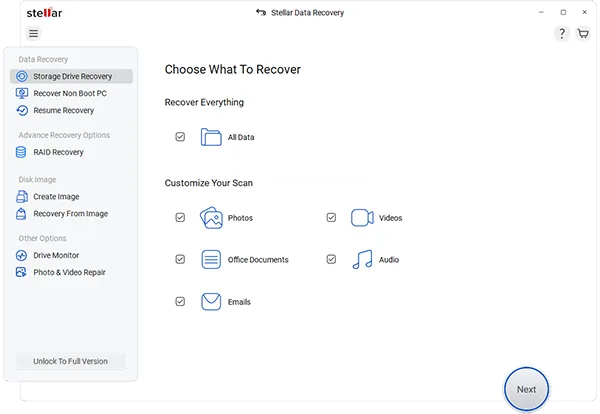
Choose Storage Device: Choose the drive, folder, USB drive, or any other storage device from which the data is lost.
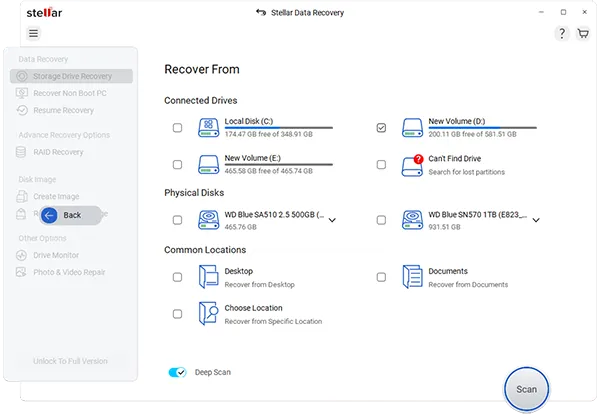
Scan for Lost Data: Click Scan to look for the lost or deleted data. Go for Deep Scan if the data files are not found in the first attempt.
Preview and Select Files: Preview the recoverable data files and choose the data files you wish to recover.
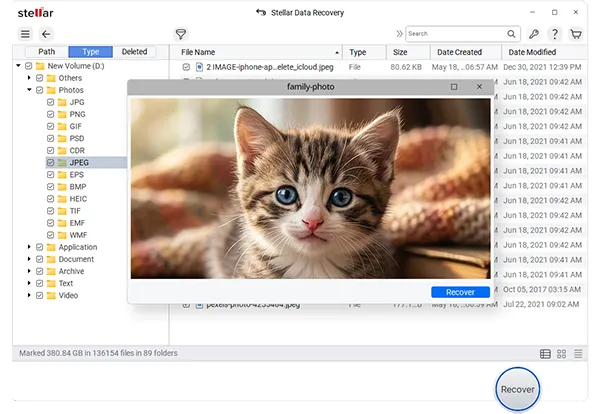
Recover and Save Data: Click on Recover and save the recovered data to another storage device.
There is a tool in Windows known as Check Disk or CHKDSK that could detect and fix some file system issues.
It can be useful when a CRC error is caused by logical corruption of a file system. It will not automatically fix all reasons for CRC errors and will not fix physical damage to the storage device.
Make sure to recover or back up any valuable information before the repair process. In case the storage device is physically failing, then data recovery should have priority over CHKDSK, especially with the /r switch.
chkdsk X: /f
Observe any prompts that appear.
The /f switch instructs Windows to fix file system errors that it detects. In case the volume is in use, Windows might prompt whether to schedule the process at a later restart.
The command listed below does an even more detailed scan:
chkdsk X: /r
The /r switch incorporates all features of /f and tries to find unreadable sectors and recover readable data from them.
It takes a long time to perform such a scan and puts extra load on the drive, which could fail soon. Therefore, it should not be used as a first attempt when the device makes strange noises, disconnects itself often, or contains unique data.
Check if Windows can access the affected files after completing the process. When an error doesn’t go away, do not repeat the repair process without analyzing the state of the device.
At times, a CRC error can be detected while trying to access the whole partition. At other times, Windows might indicate that the volume is RAW or needs to be formatted.
The RAW condition indicates that the file system of the volume is not recognized by Windows in its current form. It does not automatically mean that all files are gone.
If you want to recover your data, do the following:
If the partition is inaccessible due to severe hardware damage, do not use the drive anymore and contact professionals for assistance.
Do not perform partition rebuilding or restructuring until important files are recovered.
If the CRC errors continue to occur, you may need to test if your storage device is about to fail.
Here are the symptoms:
You can start your testing with a diagnostics tool provided by the manufacturer of your storage device. Some programs can detect SMART warnings and indicate potential problems with media or hardware.
Another option is to use a simple Windows command to check the status of your drive:
wmic diskdrive get model, status
Note that WMIC is outdated and may be unavailable in newer versions of Windows. Also, its status detection capabilities are very basic and shouldn’t be used as evidence of the good health of your drive.
In case your diagnostic tool warns you about a critical problem, back up your data and prepare for the replacement of the drive. Don’t use the device as the only copy of your files.
If the drive is about to fail, you may want to use a
In case the CRC error is generated when opening one particular file or unpacking an archive, the source file could be corrupt.
Consider doing the following:
If the new copy works fine, the original file was probably incomplete or corrupt.
If the error is generated by many files, concentrate on the storage device and the file system.
In case the drive cannot even be opened in Windows, the next course of action will depend on whether the issue is logical or physical.
If there is a stable drive that is detected by Windows, but the partition is inaccessible, a proper recovery application might be able to scan the volume. In case the drive is unstable and keeps disconnecting, or produces odd noises, attempting software recovery could be risky.
It is better to create an image of the drive by using a good tool or consulting a specialist in data recovery when data stored on the drive is really important.
An image gives you a backup that allows you to attempt data recovery without having to keep scanning the original drive.
If the drive is physically damaged, recovery specialists might be able to work with the drive in a controlled environment.
A Cyclic Redundancy Check (CRC) error might keep you from accessing important files, but it doesn’t always imply that the data is lost forever. The reason can be a damaged connection, corrupt files, problems with the file system, unreadable sectors, or a bad hard drive.
In order to retrieve your information, first of all, make sure that the drive is protected from any unnecessary writing. If the device is stable, check its connection, retrieve readable files, and use appropriate software to restore inaccessible ones. Perform CHKDSK only after analyzing the state of your drive and the possible risks of file system changes.
Do not perform the same process multiple times when your drive is physically damaged or store irreplaceable files. Focus on your data and retrieve it before making any changes to the affected drive.
Ans: A Cyclic Redundancy Error is an error-checking mechanism that indicates data corruption or transmission errors in your computer and storage device.
Ans: Checking the connection cables and using Windows tools like CHKDSK can support data recovery and finding your files after a CRC error.
Ans: Devices with frequent CRC errors are not safe to use, as they indicate bad sectors and hardware failure. Replace them immediately.
