
A few years ago, I faced issues with my laptop while opening Google, and it felt quite frustrating. While I kept on looking for problems in the hardware, it was later that I realized it was the software that was creating problems.
That frustration is what pushed me to build an actual maintenance routine instead of just living with the slowdown, and Advanced SystemCare has been the backbone of that routine ever since.
What follows in this article are the findings I came across while solving these issues; just as a user like you, you can explore this article for more details!
You can start by following these easy steps:
Everything begins on the actual Care screen. It’s refreshingly simple: one big Scan button, and a toggle between AI Mode and Manual Mode sitting just below it. I like that the software doesn’t hide the core action behind menus you open the app, and the first thing you see is exactly what you came for.
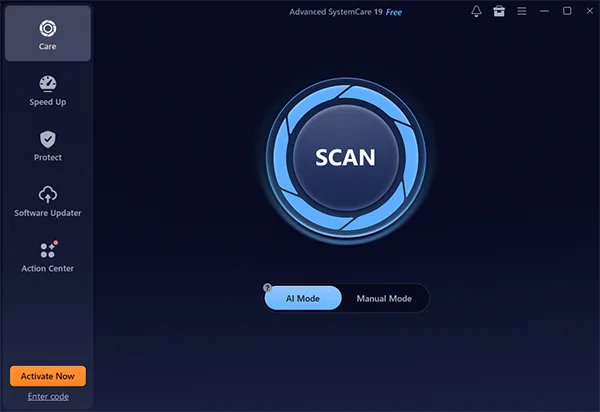
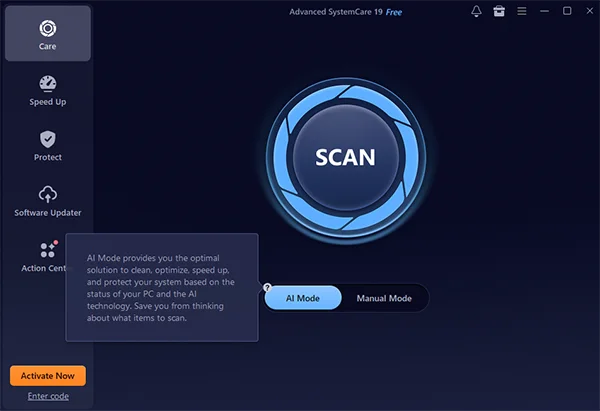
This is the fork in the road, and it’s worth knowing both options. AI Mode analyzes your PC’s current condition and automatically knows what to clean, optimize, and protect it’s the option I recommend to anyone who just wants results without getting into checkboxes.
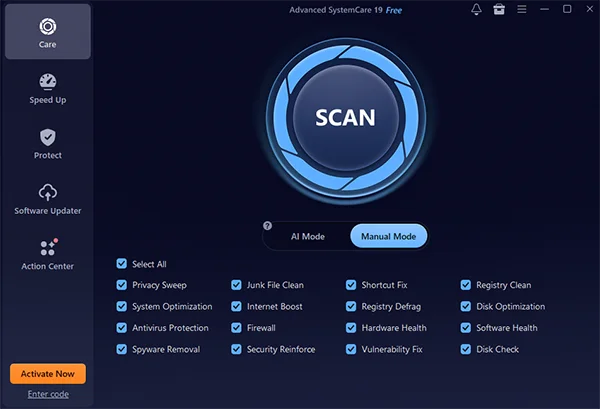
When I want more control, say, I only want to clear privacy understanding and skip the registry work, I switch to Manual Mode instead. It lays out every category as an separate checkbox: Privacy Sweep, Junk File Clean, Registry Clean, Disk Optimization, Antivirus Protection, and more. I usually go with everything selected, but it’s nice to have the option.
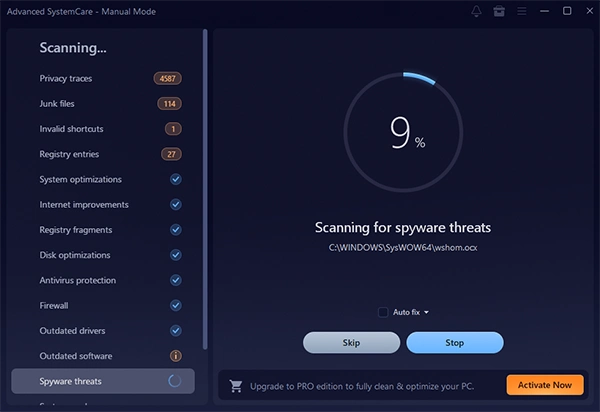
Once I hit Scan, the left panel fills in live as every category finishes privacy traces, junk files, invalid shortcuts, registry entries, outdated drivers, spyware threats, and so on. Watching the counters rise (I’ve seen it flag thousands of privacy traces on a machine I hadn’t cleaned in months) is honestly a little satisfying, and it’s reestablishing to see exactly what’s being checked instead of a vague progress bar.
Before I let any Windows cleaner touch my system, I want to know what it’s about to move. Advanced SystemCare shows a summary screen listing everything it found: privacy traces, junk files, invalid shortcuts, registry entries, plus items it can optimize for performance and safety. On a neglected laptop I tested recently, it flagged around 4,900 items and almost 770 MB of reclaimable space. I always skim this list before clicking Fix.
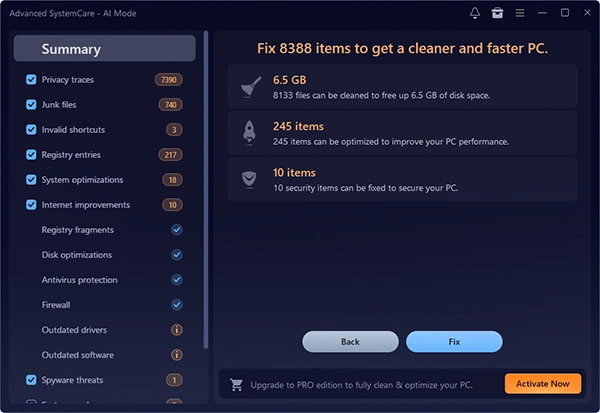
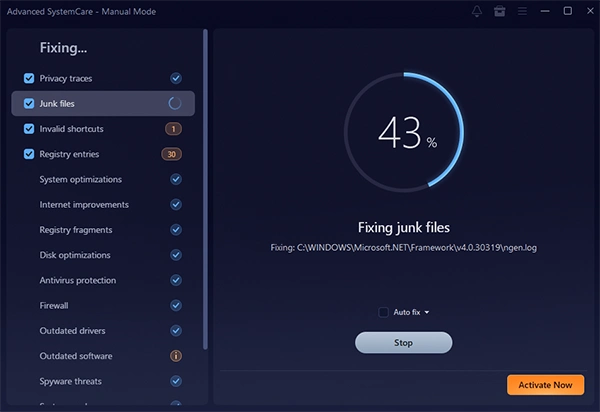
Clicking Fix kicks off the actual cleanup, next with a live category-by-category progress view so you can see what’s going on under the hood rather than staring at a spinner.
When it finishes, I get a new confirmation screen: “Your system is clean now!” along with the exact amount of disk space recovered. That closing number is oddly encouraging; it’s proof the routine is actually doing something, not just running for show.
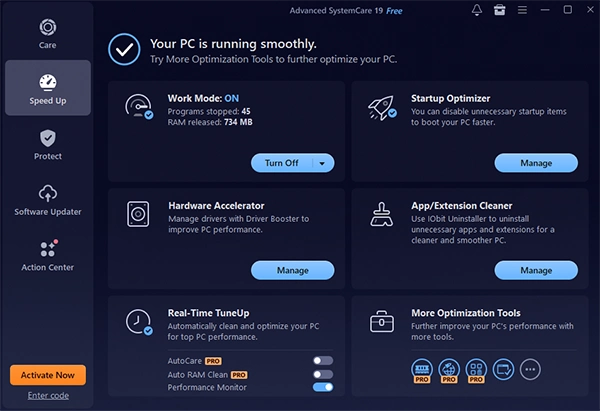
A clean disk is only half the battle the other part is what launches every time you boot. The Speed Up tab depicts your current Work Mode status, how many background programs were stopped, and how much RAM was released. From here I look after startup items with the Startup Optimizer and keep an eye on the App/Extension Cleaner for programs I forgot I installed.
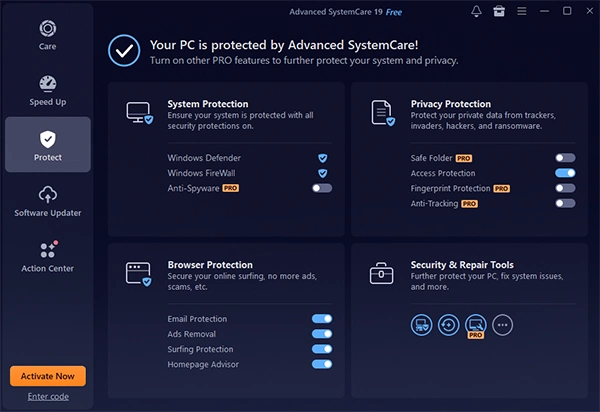
I treat this as a non-negotiable procedure. The Protect tab reflects the status of Windows Defender, Windows Firewall, Email Protection, Ads Removal, Surfing Protection, and Homepage Advisor at a glance. As a PC cleaner and optimizer, Advanced SystemCare isn’t an alternative for antivirus software, but it’s a useful second layer, especially for browser-based threats.
Outdated software is one of the greatest common (and most ignored) security risks on a personal PC. The Software Updater tab depicts installed programs browsers, archive tools, communication apps and flags anything behind on updates. On a well-maintained machine, this screen is mostly boring: everything just says “Up to date.”
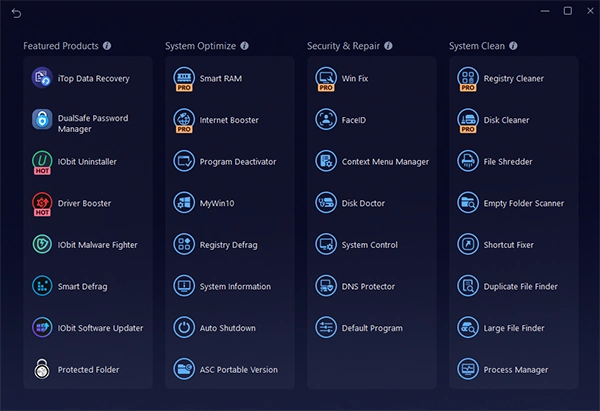
Beyond the core cleaning workflow, Advanced SystemCare bundles a toolbox of specialized actions Smart RAM, Registry Defrag, Duplicate File Finder, Large File Finder, Disk Doctor, and more organized into Featured Products, System Optimize, Security & Repair, and System Clean categories. I don’t use all of these in every week, but knowing they’re there has saved me from downloading different one-off apps more than once.
I’ve tried plenty of one-click “miracle” cleaners over the years, and usually most of them either did too little or made vague promises I couldn’t verify. What keeps me drawing back to this particular PC cleaner is transparency: it tells me what it found, how much space it will recover, and what’s currently protecting my system, before and after every action. That’s the distinction between blindly trusting software and actually understanding your own machine.
If your computer has been feeling sluggish now, I’d genuinely recommend giving this workflow a try. You can install Advanced SystemCare for free and run through these same nine steps yourself it takes maybe fifteen minutes, and unlike buying new hardware, it costs nothing to find out whether cleanup alone solves your problem.
A reliable Windows cleaner won’t update a genuinely failing hard drive or a CPU that’s simply reached the end of its important life. But for the far more usual case a healthy machine buried under years of digital disturbance it’s made a real, measurable difference on every PC I’ve run it on.