

Every moment spent on a form, manually entering every field, passport number, or date of birth, increases the chances that the person will abandon the onboarding process. For developers focusing on identity verification workflows or customer registration systems, passport scanning is an effective way to reduce complications at the point of entry.
Modern onboarding workflows have integrated an MRZ Scanner SDK into their applications to allow automatic data parsing and form population in under two seconds, while also ensuring the great accuracy that manual entry fails to achieve.
This guide explains the MRZ, its data structure, and how to design a reliable form auto-fill pipeline using passport scanning technology.
Key Takeaways
- Each MRZ line contains fixed-length fields in a strict positional format. For a standard TD3 passport, the most common type, the MRZ spans two lines of 44 characters each
- Development teams usually select among these three options: manual user entry, general-purpose OCR on the passport bio page, or a dedicated MRZ Scanner SDK
- A well-designed passport scanning and form auto-fill pipeline consists of several distinct stages, each of which can be optimized independently
- Manual data entry creates transcription errors, frustrates mobile users, and increases the chances of drop-off at any critical moment
Before development begins, it is important to understand the MRZ. The MRZ is a standardized zone on passports, national ID cards, and travel documents, all governed by ICAO Document 9303.
It comprises two or three lines of characters printed in OCR-B typeface format, ensuring reliable machine readability.
Each MRZ line contains fixed-length fields in a strict positional format. For a standard TD3 passport, the most common type, the MRZ spans two lines of 44 characters each. Every field occupies a defined character position, making parsing deterministic and eliminating the need for layout inference.
Key fields encoded in the MRZ include:
The check digit mechanism is a key feature for developers. Each critical MRZ field is followed by a single-digit checksum, allowing programmatic verification of data integrity. Manual data entry cannot provide this level of validation.
When considering passport data capture, development teams usually select among these three options: manual user entry, general-purpose OCR on the passport bio page, or a dedicated MRZ Scanner SDK.
These methods differ considerably from each other and directly impact onboarding completion rates, data quality, and workflow efficiency.
| Approach | Speed | Accuracy |
| Manual entry by the user | Slow (2–5 minutes) | Error-prone (~15–20% error rate) |
| OCR on passport bio page | Moderate | Inconsistent (layout variance) |
| MRZ Scanner SDK | Fast (< 2 seconds) | High (checksum-validated) |
Accuracy estimates based on general industry observations; specific figures vary by implementation.
General OCR on the passport bio page faces many issues, such as varying fonts, shifting photo placements, and complex background patterns that affect character recognition capabilities.
In contrast, the MRZ utilizes a standardized typeface tech across all ICAO-compliant documents, making sure that consistent readability is maintained.
An MRZ Scanner SDK builds on this consistency and incorporates checksum validation to identify unreliable reads before data even reaches your form fields.
For teams focused on business process optimization, including reducing onboarding drop-off, minimizing support tickets from data entry errors, and streamlining manual review, MRZ-based passport id scanning offers clear advantages.
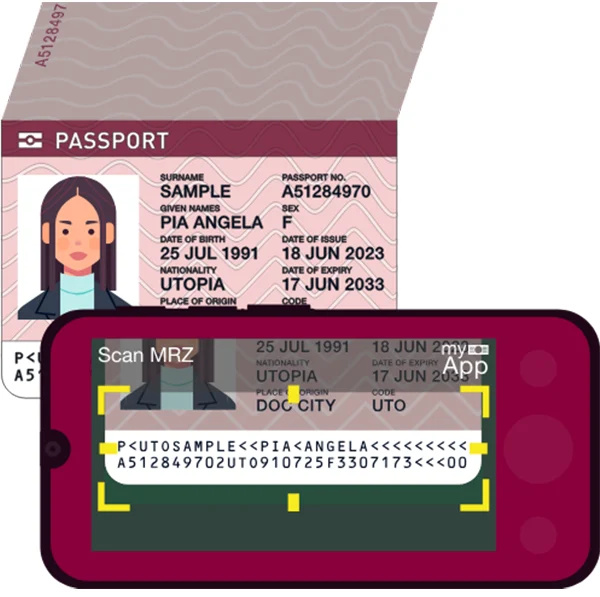
MRZ scanning libraries vary in quality and features. When evaluating an SDK for integration, carefully assess both technical and operational factors before selecting a dependency.
Decide early whether the SDK must run on the client side, such as in a browser through WebAssembly, or natively in an iOS or Android application, or on the server side, processing uploaded images directly through a backend API.
Applications like kiosk check-ins or high-volume KYC pipelines often prove to be advantageous from server-side processing for image quality pre-screeening. Mobile-oriented onboarding typically prioritizes client-side scanning to deal with latency and infrastructure costs.
Look for SDKs that offer:
A well-designed MRZ Scanner SDK displayed parsed results as structured objects, not raw character strings. In ideal scenarios, the result model includes named properties such as surname, givenNames, documentNumber, dateOfBirth, nationality, expiryDate, and sex, along with confidence scores or validity flags for every field.
This exact structure maps directly to your form fields, thereby eliminating the need for custom parsing logic.
Be cautious with SDKs that return only a raw MRZ string and require the integrating developer to manage all parsing.
Implementing the full specification smoothly, including edge cases such as names exceeding the fmax field length or filler characters for absent fields, is time-consuming and prone to errors.
After obtaining a parsed MRZ result object, the next step is to map these fields to your onboarding form. This process can be complex, as MRZ data conventions often differ from typical UI form expectations and require specific transformations for a seamless user experience.
| MRZ Field | Parsed Value Example | Onboarding Form Field | Notes |
| Surname | SMITH | Last Name | Convert to title case |
| Given Names | JOHN EDWARD | First Name / Middle Name | Split on space |
| Date of Birth | YYMMDD → 1985-06-22 | Date of Birth | Reformat for locale |
| Nationality | USA (ISO 3166-1) | Nationality / Country | Map to dropdown value |
| Document Number | A12345678 | Passport Number | Validate checksum |
| Expiry Date | YYMMDD → 2029-11-30 | Document Expiry | Flag if expired |
| Sex | M / F / < (unspecified) | Gender (if collected) | Handle ‘<’ gracefully |
Names in the MRZ are stored in uppercase Latin characters, with the surname and given names separated by two filler characters (<<). Non-Latin characters are transliterated per ICAO guidelines. Your application should convert strings like SMITH<<JOHN<EDWARD into a display-friendly format such as “John Edward Smith.” At minimum, apply title case conversion and split given names if your form requires separate first and middle name fields.
For documents with transliterated names, common in Arabic, Chinese, or Cyrillic script passports, allow users to verify and, if necessary, correct the populated value. Including a brief review step after auto-fill, instead of presenting a blank form, significantly improves data quality and user confidence.
Dates in the MRZ use the YYMMDD format. The year field requires precise interpretation, as the ICAO standard states that values above a certain threshold limit should be treated as 1900s instead of 2000s, depending on implementation.
Most reputable MRZ Scanner SDKs handle this automatically, but it must be confirmed in your chosen library’s documentation.
Your workflow should ensure the checking of the expiry date during scanning. If the document has expired, display a clear, user-friendly error message rather than allowing the form to be populated, preventing identity verification failures later in the onboarding process.
A well-designed passport scanning and form auto-fill pipeline consists of several distinct stages, each of which can be optimized independently. Understanding the entire pipeline enables effective planning for edge cases, error handling, and user experience during data review.
Whether operating using a live camera feed or file upload, the capture stage must ensure sufficient image quality before MRZ recognition. This includes verifying resolution (most SDKs require at least 1,200 × 800 pixels), detecting blue, and confirming the MRZ zone is completely visible.
Some SDKs also offer real-time capture tutorials to assist users in positioning documents correctly, reducing failed scans, and improving overall user experience.
After the SDK returns a result, validate each field using the embedded check digits before passing data to your form. A failed checksum on the document number or date of birth should be treated as a scan failure. At this stage, you may also apply business logic, such as flagging documents that expire within 90 days or cross-referencing nationality against a list of supported countries.
Populate form fields with validated, formatted values and display them to the user for a quick review. This step is very important as it identifies transliteration issues with non-Latin names and creates user trust by providing transparency.
Usability research shows that review-and-confirm patterns regularly improve user confidence and data accuracy compared to hidden auto-fill.
At this stage, determine whether you need to retain the original scan image. In many KYC and compliance workflows, retaining the document image, encrypted and access-controlled, alongside parsed information, is a regulatory requirement.
If the development team uses workflow automation or document management platforms, define the storage and access model of such images before proceeding towards launch. Adding auditability after deployment is costly.
Fun Fact
Ever notice your name looks different on forms? That’s because punctuation doesn’t exist in the MRZ. Any apostrophes, hyphens, or spaces in your name are replaced by chevrons.
Managing passport data involves many legal and ethical responsibilities. Identity documents are considered sensitive personal information under most privacy frameworks, including the GDPR, CCPA, and similar regulations. Your implementation must address such requirements from the beginning.
Key principles to follow:
Verify whether your chosen SDK transmits any data to external servers during processing. Some cloud-based scanning SDKs send images to vendor infrastructure for OCR processing. This may be acceptable under your organization’s data processing agreements, but it must be evaluated and documented before deployment.
Reducing friction in identity verification and user registration not only impacts the developer’s convenience but also alters the commercial outcomes of onboarding flows.
Manual data entry creates transcription errors, frustrates mobile users, and increases the chances of drop-off at the critical moment when a new customer is deciding to commit to the designed platform.
Integrating an MRZ Scanner SDK to auto-fill onboarding forms from passport data is a highly impactful technical decision for identity-focused products. The technology is mature, the specification is standardized, and while implementation is complex, it is well-defined and manageable with proper planning.
Key priorities for successful implementation include selecting an SDK with robust field parsing and checksum validation, incorporating a review-and-confirm step into your user experience, handling edge cases in name formatting and date interpretation, and ensuring strong privacy practices from the outset.
As digital onboarding gradually replaces in-person verification across financial services, travel, healthcare, and enterprise platforms, passport scanning starts to become a standard expectation rather than a differentiator.
Correct implementation of it positions your platform ahead of the competition and also delivers a greatly improved user experience, as users no longer need to enter passport numbers manually.
Ans: Manual data entry creates transcription errors, frustrates mobile users, and increases the chances of drop-off at the critical moment when a new customer is deciding to commit to the designed platform.
Ans: The following are the key principles to follow:
Ans: Applications like kiosk check-ins or high-volume KYC pipelines often prove to be advantageous from server-side processing for image quality pre-screeening.
Ans: Key fields encoded in the MRZ are
