
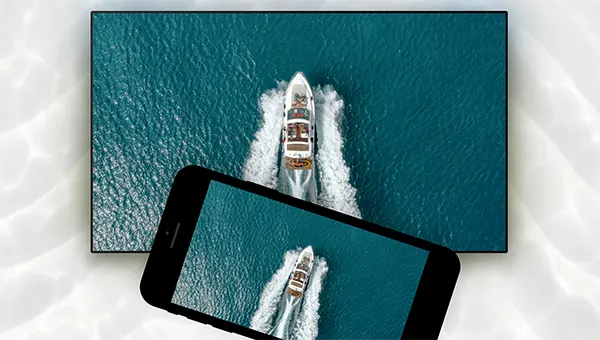
So I was trying to mirror my iPhone to my TV in order to show some photos and videos to everyone because, to be honest, it’s better than passing the phone to everyone in the room.
My TV had Roku, but it still wasn’t connecting to my iPhone; I was getting furious, then I remembered that there are apps that can help mirror your iPhone to a TV. turned out I realised that the connection depends on which Roku model I have and whether it supports Apple’s AirPlay.
Well, there are so many ways to connect your iPhone to a compatible Roku TV without connecting a cable. This guide will help you understand how to get started, what to do, and how apps like DoCast can help.
Yes, you can mirror an iPhone to compatible Roku devices, but the method matters.
Some Roku TVs and streaming players support Apple AirPlay, which lets you share photos, videos, and other content from an iPhone. If your Roku device supports AirPlay, you can just connect directly through your iPhone’s built-in controls.
However, not every Roku model supports AirPlay. If your device doesn’t provide this feature, you may need another compatible solution.
One option is DoCast, an app for iPhone and iPad that supports screen mirroring and media casting to compatible streaming devices, including Roku. To mirror your screen to Roku using DoCast, you also need to install the DoCast channel on your Roku device.
Before picking a method, check your Roku model and the features it supports. This will help you avoid wasting time trying to use a connection method that isn’t available on your device.
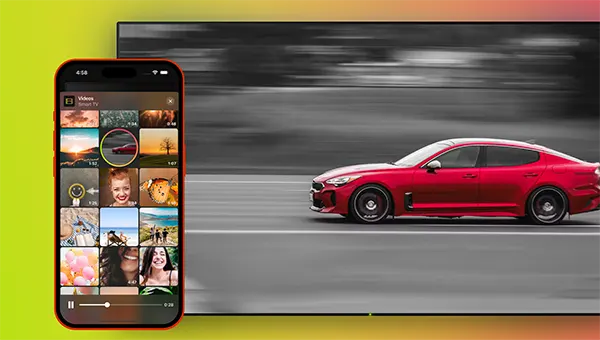
If your Roku device supports AirPlay, you can try Apple’s built-in feature first. You don’t have to install a separate screen mirroring app to use this method.
Make sure your iPhone and Roku device are connected to the same wireless network. This is a crucial requirement for AirPlay to discover and connect to your TV.
If you have several Wi-Fi networks at home, check that both devices are using the correct one.
Using your Roku remote, open the settings menu on your TV.
Go to Settings > Apple AirPlay and HomeKit. If the menu is available, make sure AirPlay is turned on.
If you can’t find this option, your Roku device may not support AirPlay, or its software may require an update. You can check your device model and software version under Settings > System > About.
Unlock your iPhone and open Control Center.
Tap Screen Mirroring and wait for the list of available devices to appear.
Choose your Roku TV or streaming device from the list. If a passcode appears on your TV, enter it on your iPhone.
Once the connection is set, your iPhone screen should appear on the TV. You can open photos, navigate supported apps, or display other content from your phone.
To stop mirroring, open Control Center, tap Screen Mirroring, and select Stop Mirroring.
Keep in mind that some apps restrict screen mirroring for protected video content. If a particular movie or show doesn’t appear, the service may need you to use its supported playback method instead.
If AirPlay isn’t available on your Roku device, you can look for a compatible third-party app. DoCast supports screen mirroring and media casting from an iPhone or iPad to compatible Roku devices.
Here’s how to set it up.
Download DoCast from the App Store and open the app.
Make sure your iPhone and Roku device are connected to the same Wi-Fi network. Also, check that your Roku model is compatible with the app.
Open the Roku Channel Store on your TV or streaming device and install the DoCast channel.
This step is essential because DoCast requires its Roku channel to mirror an iPhone screen to Roku. Installing the app on your iPhone alone isn’t enough to complete this particular setup.
Open DoCast on your iPhone and follow the on-screen instructions to find your Roku device.
Choose the appropriate device from the available list. If the Roku device doesn’t appear, check your Wi-Fi connection and make sure the DoCast channel is installed and ready to use.
After connecting to the Roku device, open the Screen option in DoCast.
Before starting, you can adjust the available settings, such as mirroring quality and screen rotation. Then tap the button to begin mirroring and follow any prompts shown in the app.
Your iPhone screen should now appear on your TV.
One limitation to be aware of is that DoCast screen mirroring to Roku currently works without sound. If you need audio from a video, check whether another supported playback or casting option is appropriate for your content.
When you’re finished, return to DoCast and stop the mirroring session.
Once your iPhone is connected to the TV, there are several practical ways to use the larger screen.
If you have videos saved on your iPhone, showing them on a TV makes it easier to watch with friends or family. Instead of everyone looking at a small screen, you can sit comfortably and enjoy the content together.
For protected content from streaming platforms, you may need to open the relevant service directly on Roku or use its supported casting feature.
Screen mirroring is also helpful for sharing vacation photos, birthday pictures, or videos from a recent event. You can move through your gallery on your iPhone while the images appear on the TV.
This is particularly handy when various people want to see the same photos without crowding around your phone.
You can also use screen mirroring to show a presentation, display a web page, or demonstrate something on your phone. The larger display makes small text and visual details easier for a group to notice.
The exact experience also depends on the connection method and the content you’re displaying.
Screen mirroring and casting are usually used interchangeably, but they don’t work in exactly the same way.
Screen mirroring duplicates your iPhone display on the TV. When you navigate between screens or open an app, those actions are reflected on the television. Your iPhone remains active throughout the session.
Casting sends supported media to the TV for playback. Depending on the service and device, the video can continue playing on the TV while you use your phone for other things.
If your goal is to display your entire iPhone screen, screen mirroring is the more suitable option. If you only want to watch a video from a supported streaming app, casting or opening that service directly on Roku may be more convenient.
DoCast provides both screen mirroring and media casting features for compatible devices, giving you options depending on what you want to display.
If your iPhone can’t connect to your Roku device or the connection doesn’t work as expected, there are various things worth checking.
Start with the basics. Your iPhone and Roku device should be connected to the same network for the relevant wireless connection method to work.
If your router has different network names for different bands or a guest network, inspect that your devices can communicate with each other.
If you’re trying to use Apple’s built-in Screen Mirroring feature, make sure your Roku model supports AirPlay.
Open Settings > System > About on Roku to check the model and software version. You can then compare this information with the official Roku AirPlay support guide.
Check for available software updates on your iPhone and Roku device. Updates can resolve compatibility problems and improve connectivity.
If you’re using DoCast, make sure you have the latest version of the app and that the DoCast channel is installed on Roku.
If everything appears to be configured correctly but your Roku device still doesn’t show up, try closing and reopening the app. Restarting your TV or streaming device and reconnecting to Wi-Fi may also help.
If you’re using DoCast, verify that the Roku channel is installed before trying to start a mirroring session.
Some streaming services restrict screen mirroring or prevent protected videos from appearing on an external display. If other content mirrors successfully but a particular movie or show doesn’t, the restriction may come from the service instead of your connection.
In that situation, try opening the service directly on Roku or using its officially supported playback options.
Mirroring an iPhone to Roku is a practical way to share photos, watch personal videos, and display content on a larger screen. If your Roku device supports AirPlay, Apple’s built-in feature is a good place to start.
If AirPlay isn’t available, DoCast is another option to look for compatible Roku devices. You’ll just have to install the DoCast channel on Roku as well as the app on your iPhone, then follow the setup instructions to begin mirroring.
The key is to check device compatibility before getting started. Once you’ve chosen a method that works with your setup, sharing content from your iPhone on your TV becomes much easier.
To learn more about supported devices and features, visit the official DoCast website or get the app through the Apple App Store.
Ans: Yes, you can mirror your iPhone to certain Roku TVs and streaming devices via Apple’s AirPlay. If your devices are incompatible with AirPlay, try searching for alternative third-party apps that support it, like DoCast.
Ans: Yes, wireless mirroring options require your iPhone and Roku device to have access to the same Wi-Fi network in order to connect to one another.
Ans: Yes, there is a third-party application called DoCast that can help. You will have to install the app on your iPhone and the channel on your Roku device.
