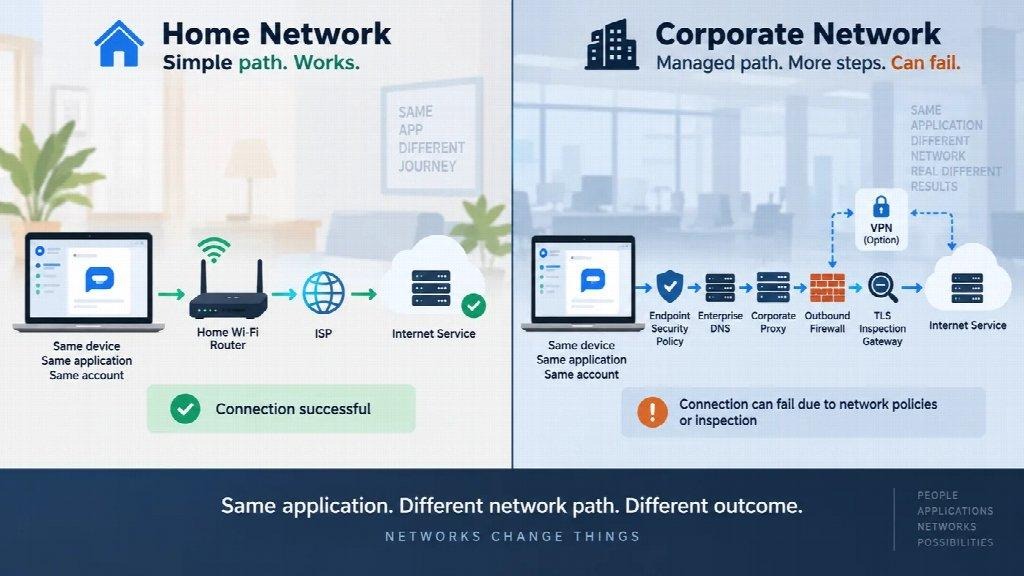
A desktop application that works perfectly at home can suddenly become unusable the moment it connects to an office network. The software has not changed, but the environment around it has.
A corporate network can use a proxy server, firewall connections, SSL inspection, manipulate DNS requests, and enforce various policies on a network, something that doesn’t happen at home.
The simple phrase “The app won’t connect” is actually a far more complex issue to troubleshoot. Instead of quickly fixing the problem by installing the app again, one needs to determine what has changed in the environment.
This article discusses why some desktop applications may run properly at home but not on business networks. The covered topics include proxies, firewalls, DNS, SSL decryption, VLANs, and others.
Reinstalling an application is easy to suggest because it is visible and familiar.
It is also frequently unrelated to the actual cause.
Before replacing any components, gather some basic facts.
Does the application open normally?
Can the user sign in?
Does the same client work on another network?
Does the browser version work while the installed client fails?
Do things change when the corporate VPN connection is established?
Those answers are more useful than immediately downloading a fresh installer.
If the same application works on a hotspot but fails on the office LAN, the client itself may be healthy. The environment around it deserves closer attention.
This does not necessarily tell us where the blame lies. It just gives the inquiry somewhere to begin.
Among the most popular confusions is the following one:
The website works in the browser, so the network must be fine.
That conclusion is too broad.
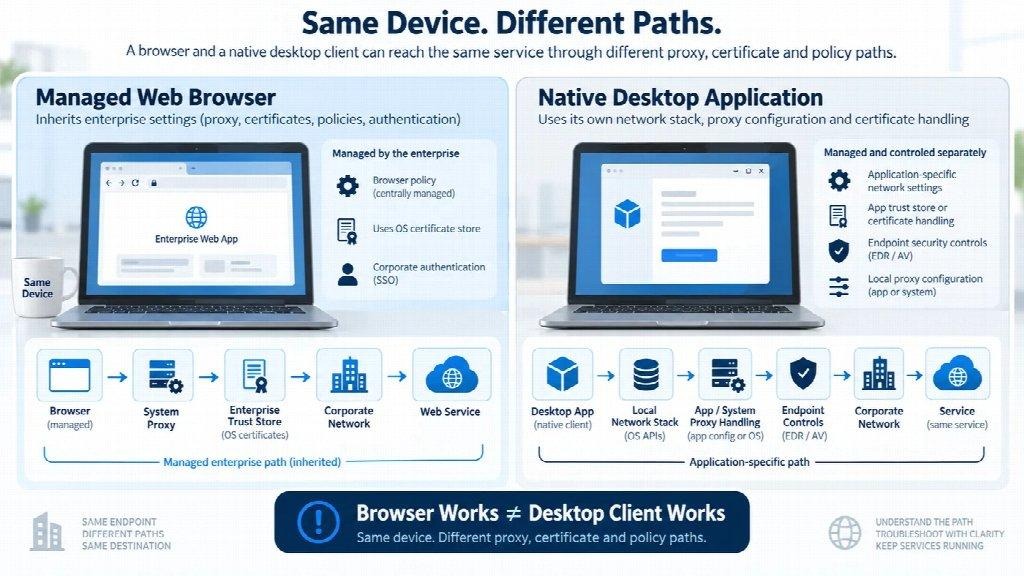
A managed browser will usually have enterprise settings automatically applied to it; for example:
A native desktop application may use a different network library, a separate proxy configuration, or its own certificate handling.
Both clients may reach the same service while taking different paths to get there.
That is why a working browser session is useful evidence, but not a complete diagnosis.
It tells you that some access exists.
It does not tell you whether or not the installed client follows the same route.
However, before altering the proxy or firewall settings, one should verify what the user is running.
That sounds obvious, but “desktop version” can mean different things in practice.
One user may be running a native Windows client.
Another may be using a store-installed package.
A third may have a browser app pinned to the taskbar and describe it as desktop software.
Such variations are important since networking behaviors may differ between them.
If support staff is working with Traditional Chinese users, a reference such as a Telegram 下載與安裝指南 can help confirm the intended client and supported installation path before anyone starts changing network settings.
The point is not to turn client identification into a separate project.
It is simply to establish what is actually running before troubleshooting the environment around it.
On a home network, the traffic path may be relatively simple:
Application → Router → ISP → Internet
Inside an enterprise, it may look more like:
Application → Corporate Proxy → Security Controls → External Service
That proxy can handle authentication, logging, policy enforcement, and filtering.
Browsers are often designed to seamlessly integrate with the proxy server’s configuration. Native clients are not.
Some inherit system configuration automatically.
Some expose their own proxy settings.
Others may have limited compatibility with certain authentication models.
This is why the browser may look fine, but the installed software may keep timing out.
The right question is not whether the proxy should be bypassed.
Instead, the real question here is whether or not the software should be functioning through the company’s network channel.
Users often describe a firewall issue in broad terms:
The firewall blocked the software.
In an enterprise network, policy is usually more granular than that.
Controls can be based on destination, protocol, device identification, network, application categorization, or user context.
That means the application may launch normally while only one category of outbound traffic fails.
It also means a successful web page does not prove that every connection required by the native client is allowed.
For support teams, this distinction is important.
The investigation should concentrate on the traffic path and policy applied to it, rather than whether or not the firewall is turned on or off.
Logs are more useful than guesses here.
If the network shows that the connection is being denied, the team has something concrete to work with.
If no traffic appears at all, attention may need to move back toward the endpoint.
Enterprise environments often inspect encrypted traffic as part of their security controls.
In simplified form, the path becomes:
Client → Inspection Gateway → External Service
Most managed browsers trust enterprise certificate authorities, as trust has already been built into the environment.
Native applications do not all handle certificates in the same way.
Some rely on the operating system trust store.
Some use their own certificate bundle.
Some enforce stricter validation behavior.
From the user’s perspective, the symptom may still be nothing more than:
Unable to connect.
This is why certificate problems can easily be mistaken for other things.
It would be wrong to turn off certificate validation or inspection controls.
IT should determine whether the application supports the environment, whether the trust chain is expected, and whether an approved configuration change is necessary.
Another common assumption is:
Other websites open, so DNS is fine.
That is not always true.
The behavior of corporate DNS may differ from that of public DNS servers.
The environment may use:
A user can therefore have perfectly normal internet access while one destination resolves incorrectly or not at all.
When trying to diagnose problems, however, the important differentiation is between:
general internet access
and:
successful resolution of the specific service the application needs.
There is no need to turn every desktop issue into a deep DNS exercise.
It may be wise, however, to do a DNS check before wasting an hour re-installing software that wasn’t the problem.
This is very important because the corporate VPN may change more than one component of the environment.
Connecting a VPN may change:
That makes VPN state a valuable diagnostic variable.
If the software runs without the VPN connected but fails when it is connected, it means something for the support team.
The reverse is equally useful.
What it does not tell them is the root cause by itself.
The VPN may be changing DNS, route selection, inspection, or access controls.
The observation narrows the investigation; it does not replace it.
A browser tab and a native desktop application are not equivalent execution environments.
Installed clients may introduce:
That local context can matter just as much as the network itself.
For teams supporting an installed communication client, confirming the actual desktop build before testing connectivity avoids mixing browser behavior with native-client behavior. A reference to the Telegram 電腦版 can be useful in that specific client-identification step for Traditional Chinese users.
Once the client is confirmed, then we will have to analyze what is really different in the desktop environment.
Not every failed connection reaches the network.
Endpoint protection may stop the application before traffic leaves the device.
Possible causes include:
For the user, all these failures appear to be the same as a disconnected network.
The application still says it cannot connect.
That is why endpoint and network logs should be compared rather than investigated in isolation.
If the endpoint never allows the process to create the connection, changing the upstream firewall will not help.
If the endpoint allows the request and the network rejects it, the path to troubleshooting would be different.
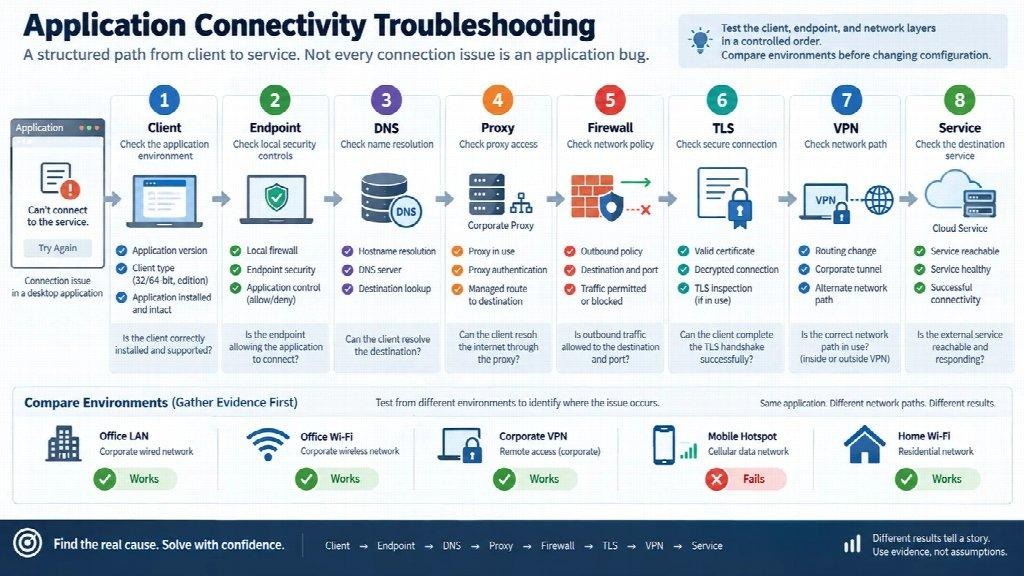
A controlled comparison is often more useful than making several changes at once.
Use the same device, the same account, and the same application.
Then vary only the network context.
For example:
| Environment | Browser Client | Desktop Client | Notes |
| Office LAN | Test | Test | Managed wired network |
| Office Wi-Fi | Test | Test | May use a different policy |
| Corporate VPN | Test | Test | Routing and DNS may change |
| Mobile hotspot | Test | Test | Useful external comparison |
| Home Wi-Fi | Test | Test | External network baseline |
The value is in the pattern.
If both browser and desktop clients fail everywhere, the issue may sit closer to the account, client, or service.
In the event that the browser works fine while the desktop client fails only in the corporate LAN, the troubleshooting becomes easier.
If both clients fail only when the VPN is active, VPN-related policy becomes a more useful lead.
This kind of matrix produces evidence.
Repeated reinstalls usually do not.
Although there is not a specific order that is applicable to all cases, an efficient order will help avoid unnecessary adjustments.
Start with the client.
Confirm the application, version, and installation type.
Then check the endpoint.
Look for local firewall, EDR, or application-control events.
Next, verify destination resolution and whether the environment expects a proxy.
Following that, determine the destination resolution as well as whether the environment utilizes a proxy server.
A simple order is:
The purpose of the sequence is not a rigid procedure.
It is to prevent several variables from being changed at the same time.
If there is only one change that resolves the problem, IT will know which layer was involved.
Connectivity problems create pressure for quick fixes.
That is where troubleshooting can drift into poor operational practice.
If the application begins functioning once the control is turned off, it does not necessarily follow that turning the control off is the right answer.
Avoid informal fixes such as:
Those actions may restore access while introducing a larger governance problem.
A better workflow is straightforward:
collect evidence → identify the affected layer → involve the responsible team → make an approved change if one is justified.
This allows the troubleshooting process to work within the framework of the security architecture rather than outside of it.
A resolved connectivity issue should not live only in the memory of the engineer who fixed it.
A short support note can save hours the next time the same application is deployed.
Useful details may include:
For applications used across multiple offices or remote environments, this kind of documentation becomes especially valuable.
The behavior of the same software application will vary since the network environment will be different.
That should be expected and documented rather than rediscovered every time.
When support teams stop viewing the application as a standalone entity, diagnosing the issues related to desktop connectivity becomes simpler.
A client that works at home but fails at the office is interacting with a different network, different policy, and often a different trust model.
The application may be perfectly healthy.
The network may also be behaving exactly as designed.
The real issue may simply be that the two were never expected to work together under the current policy.
That is why a proper troubleshooting approach always begins with comparison and never with assumptions.
Confirm the client.
Compare environments.
Check endpoint controls.
Follow the traffic through DNS, proxy, firewall, TLS, and VPN layers.
Once those pieces are separated, “the desktop app will not connect” stops being a vague complaint.
It becomes a sequence of testable questions.
Ans: There are various tools such as proxies, firewalls, DNS settings, and others used on corporate networks and not used at home. All of the above can influence the way in which an application accesses the server.
Ans: A proxy allows controlling and filtering the outgoing traffic, logging it, and authenticating users. Desktop applications can use the system proxy by default or need additional configuration for that.
Ans: TLS inspection could affect applications that utilize other certificate stores or more restrictive certificate validation compared to the managed browser. The team should find out if the application can support the company’s required inspection and certificate configuration.
Ans: The first thing is to make sure about the client and installation type. Then endpoint controls, DNS settings, proxy configurations, firewall policies, TLS inspection, and VPN behavior have to be checked.