

Outlook is widely used across personal and business environments. Microsoft says its platform serves more than 400+ million monthly active Outlook.com users. But moving an existing Thunderbird mailbox is not as simple as adding your email account to Outlook. Thunderbird stores messages in the MBOX format, while Outlook works with its own data formats, including PST.
So, how do you migrate emails from Thunderbird to Outlook without manually moving hundreds or thousands of messages?
Two cases, two ways. For a small number of emails, you can save Thunderbird messages as individual EML files and drag them into Outlook. For larger mailboxes, you can convert the Thunderbird MBOX file to PST using an MBOX to PST converter and then import the resulting file into Outlook. The second approach is generally more convenient because it reduces repetitive manual work and can preserve the mailbox structure more effectively.
In this guide, we’ll walk you through both methods, explain their limitations, and show you how to migrate Thunderbird emails to Outlook step by step.
Mozilla Thunderbird is a free, open-source email client that you can use on desktop, Mac, or even Linux PCs. Yet, many users look for ways to migrate email messages to Outlook from Thunderbird. Here are some reasons for this:
Now, let’s see the following methods that should help you migrate emails from Thunderbird to the Outlook client. Follow them to the T because poor email migrations can break business systems.
Thunderbird stores emails in an MBOX file, which the Outlook desktop client doesn’t support. However, it does support the EML file format. So, as a workaround, you can save emails as EML files. Then drag and drop them into Outlook as per the following steps:
First, you need to export emails from Thunderbird to EML format. To do this:
Note: You can also save emails using the ImportExportTools NG add-on in Thunderbird.
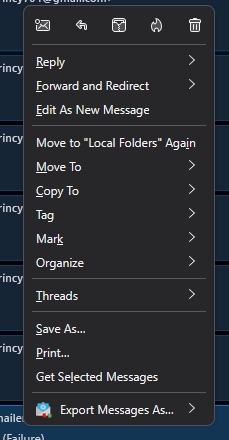
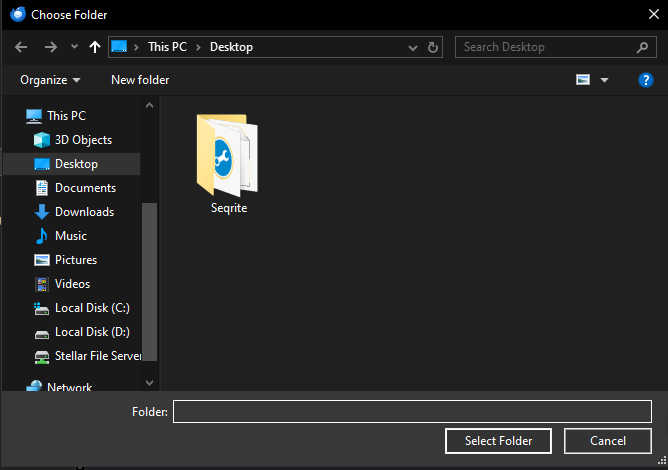
The selected email messages will be saved as individual .eml files at the selected path.
Now move the saved EML files into your Outlook account by:
Before proceeding with this method, skim through its limitations:
You can use a powerful Thunderbird to Outlook converter to convert the emails exported as an MBOX file to the Outlook-importable PST format. After that, you can simply migrate the resultant PST file to Outlook.
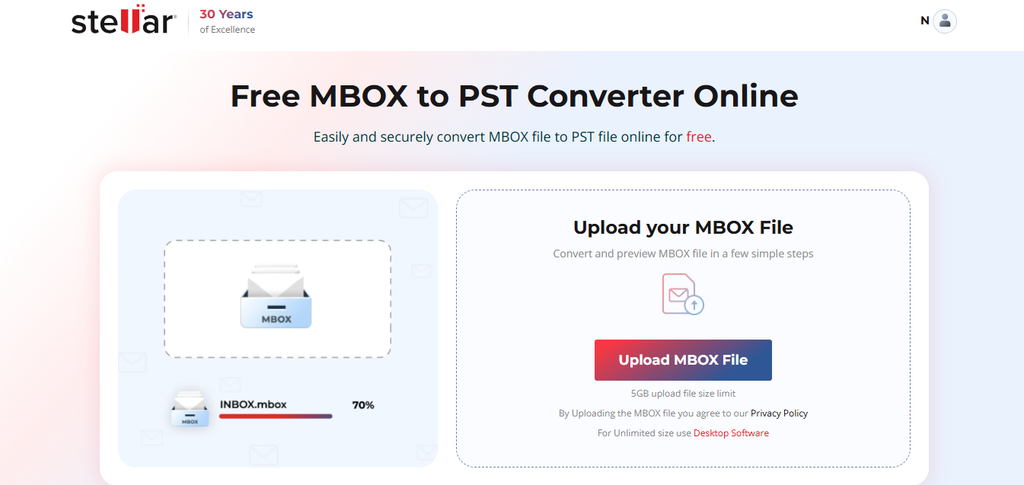
Stellar Online MBOX Converter is a free web-based utility that you can use to accurately transform Thunderbird to Outlook PST format in 3 simple steps: Upload > Convert > Download.
It is an online service that you can conveniently use on any web browser to convert MBOX files on a Windows, Mac, or Linux machine. If you have more files to convert, you can upgrade to its Premium edition, with which you can easily convert 5 MBOX files of ≤5GB in size.
Also, Stellar’s online MBOX to PST converter safeguards your mailbox data as well as privacy. The converted mailbox file is available to download for up to 3 hours (Free) and 24 hours (Premium) after the mailbox file conversion. Once the time limit ends, the file is deleted automatically from the servers.
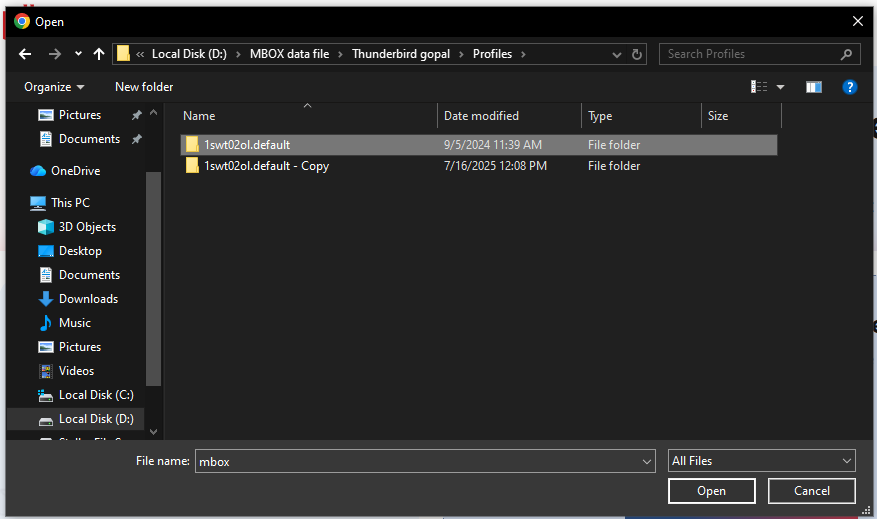
Here are the steps to use this web-based utility:

Another option to export Thunderbird to Outlook directly is by using Stellar Converter for MBOX. It is a powerful desktop application that you can use to instantly export emails from a Thunderbird file to an Outlook profile without altering the mailbox structure or folder hierarchy.
To verify the mailbox data integrity before exporting the mailbox data to its destination, you can preview Thunderbird emails and other items like:
You can also use it to convert MBOX files from 17+ email clients, including Apple Mail, Gmail, Eudora, etc., to PST format. Moreover, you can save individual mailbox entities as MSG or EML files.
Let’s see how you can use this software to directly export Thunderbird to Outlook:
Notes:The software will automatically select the default location of the MBOX file.If Thunderbird is not installed, or you want to select another file exported from Thunderbird, click on the Select Identity button.
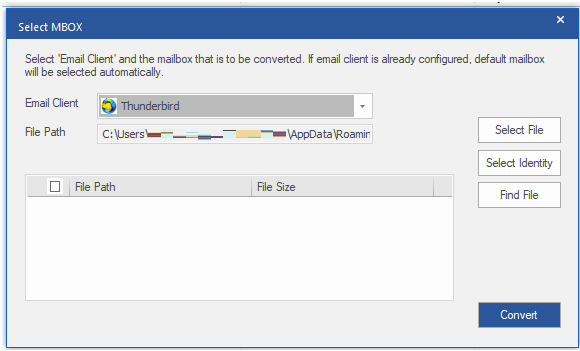
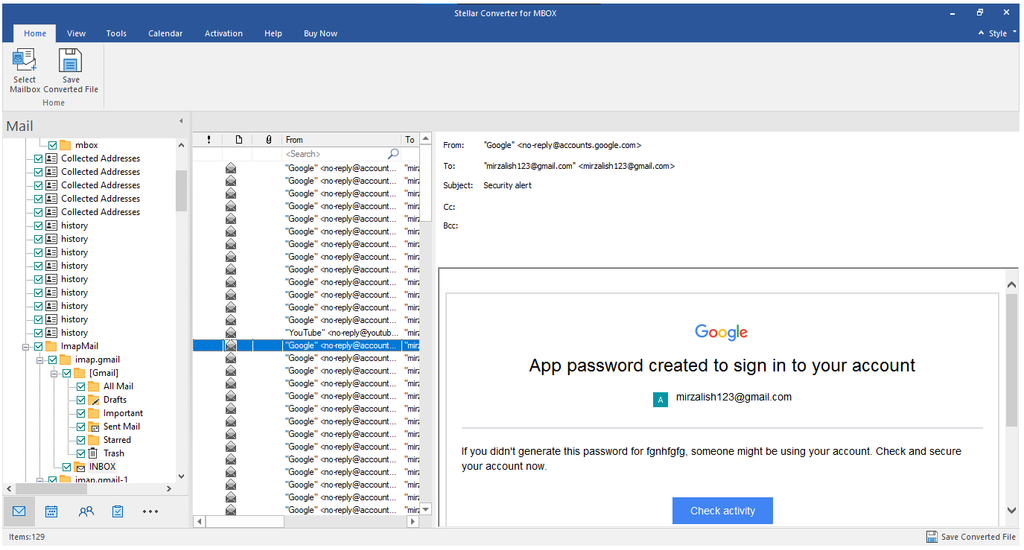
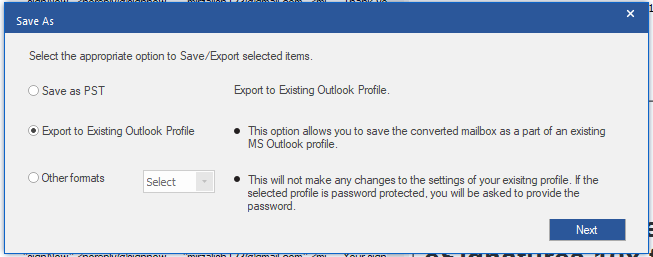
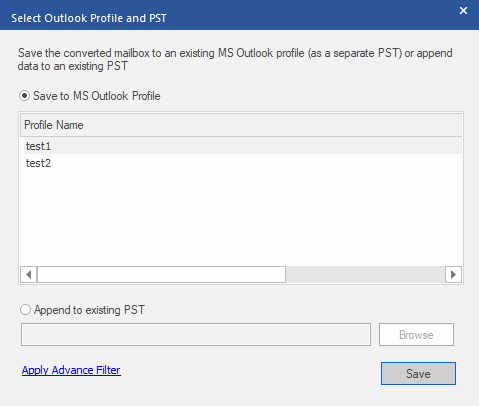
Note: If you want to add MBOX file data to an existing PST file, you can do so by clicking the Append to existing PST option.
In this guide, we explored a manual way to export Thunderbird to Outlook. We also looked at an efficient solution – a third-party tool that can directly help you migrate Thunderbird emails to Outlook profile/s. The manual method of saving email messages as EML files is tiresome and repetitive. Stellar Converter for MBOX, on the other hand, simplifies transferring emails from one email client to another.
Moreover, you can also use the online MBOX to PST converter by Stellar. It lets you easily convert Thunderbird to Outlook PST format for free. After the file conversion, you can import the resultant file into Outlook using its built-in Import/Export wizard.
Ans: No. Outlook does not natively use Thunderbird’s MBOX format. You can either use the EML file method or convert directly.
Ans: For a small number of emails, saving them as EML files and dragging them into Outlook is relatively straightforward. For a large Thunderbird mailbox, converting the MBOX file to PST is generally more practical.
Ans: New Outlook for Windows can open and work with PST files, but its PST functionality is more limited than classic Outlook. Bulk importing mail, calendar, and contacts from a PST into a mailbox is not supported in New Outlook, so classic Outlook may be required for a full PST-to-mailbox migration.
