
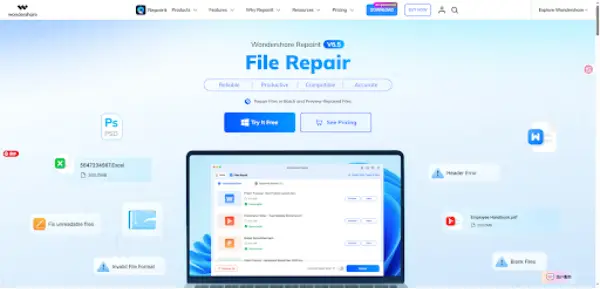
A corrupted file has the potential to ruin a workday in the blink of an eye. Whether the report fails to open, ZIP archive refuses to extract, or the media file ceases to be readable after the transfer, the importance of a reliable file repair tool lies with the fact that IT users and software teams can have uniform means of fixing the file instead of either recreating it from scratch or trying to sort out what happened.
Wondershare Repairit is an advanced AI-based data repair tool that is designed to repair damaged video files, images, documents, audio as well as emails. It even has an online version for quick repairs through the web browser.
A file repair tool matters because file corruption is not limited to one format. Users may face damaged Word documents, broken Excel spreadsheets, unreadable PDFs, corrupted archives, or media files that will not open. In a business or IT environment, these problems create support tickets, lost productivity, and avoidable rework.
The right file repair software gives teams a practical first response. Instead of asking users to try unsafe conversions or repeatedly force-open a file, IT teams can copy the damaged file, repair it, preview the result, and save a recovered version if the content is usable.
A strong file repair tool should support more than one narrow file type. Modern users work with documents, compressed files, photos, videos, and audio, so a repair platform is more useful when it covers several categories in one place.
AI-powered file repair can help identify corruption patterns and rebuild damaged file structures. Preview is equally important because users should confirm the repaired file before saving or replacing anything.
For larger or repeated repair tasks, desktop software is usually the better choice. For lighter cases, Repairit Online file repair gives users a faster browser-based path when they need to check or repair a damaged file quickly.
As a file repair tool, Repairit is built around a simple repair workflow: add the corrupted file, run repair, preview the result, and save the restored version. This makes it approachable for non-technical users while still fitting IT-style troubleshooting processes.
Repairit is useful for users who need to repair damaged documents, videos, photos, audio files, and other important digital assets. It should not be framed as a guaranteed fix for every file, but it is a practical first step when the file still exists and the main problem is corruption or unreadability.
The steps below follow the official Repairit file repair guide and show how the file repair workflow works in practice.
Open Repairit and choose the File Repair feature. Selecting the correct repair module helps the software process the damaged document or file more effectively.
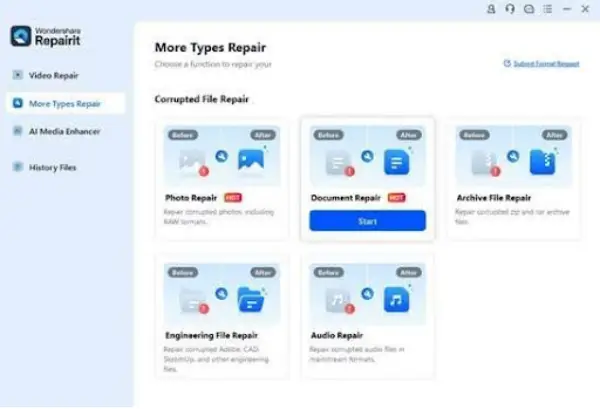
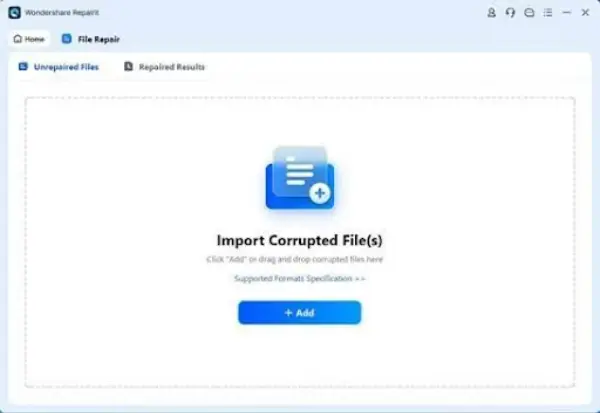
Add the corrupted file or files you want to repair. Keep the original damaged file unchanged and work from a copied version when possible.
Start the repair process and let Repairit analyze the damaged file structure. Once repair is complete, preview the repaired file to confirm that the content is readable and useful.
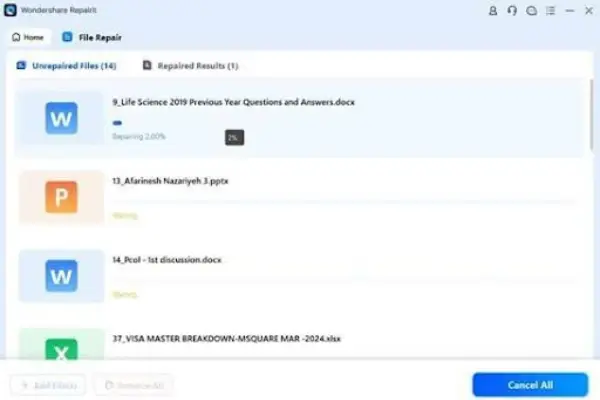
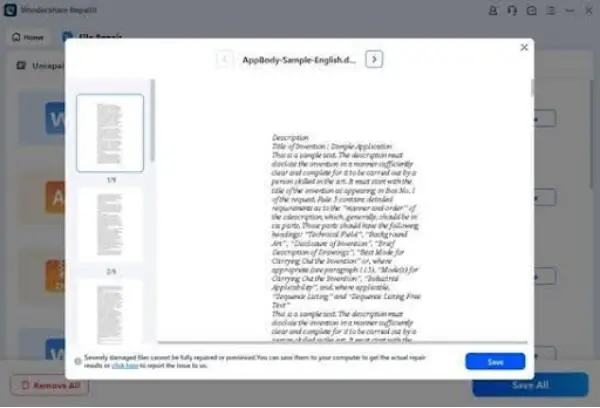
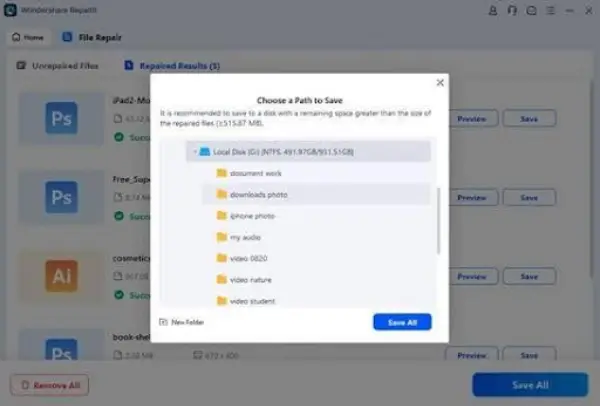
If the preview looks correct, choose a safe location and save the repaired file. For business workflows, store the repaired version separately from the original corrupted file and back it up.
Online file repair is a good fit for quick checks, smaller files, or urgent situations where a user wants to try repair from a browser. Desktop repair is better for larger files, sensitive files, repeated repair work, or cases where users need a fuller repair environment.
For IT teams, the best approach is to match the repair path to the risk level. A small non-sensitive document may be fine for online repair, while business-critical files should usually be handled through a more controlled desktop workflow.
The best file repair tool is the one that helps users respond quickly without making the problem more complicated. Repairit gives users a clear workflow for corrupted documents and media: add the file, repair it, preview the result, and save a usable copy. For teams that regularly manage documents, archives, and media files, that makes Repairit a practical addition to a broader file protection strategy.
Ans: Repairit is capable of repairing a variety of file types and standards, such as PDF files, Microsoft Office documents (Word, Excel, PowerPoint), compressed archive files (ZIP, RAR), images, videos and audio files.
Ans: Yes, while the online option offers a simple and quick way to repair smaller files using a browser, the desktop program enhances the repair process for bigger files and more complex repairs.
Ans: Yes, Repairit has a built-in preview feature that lets you look at the content and formatting of the repaired file before deciding whether to save it.
