

Still grinding Whiteout Survival on a 6-inch screen? It’s time to upgrade your setup and experience the revamped graphics and improved visuals on your PC.
Whiteout Survival has grown into one of the most competitive mobile strategy titles around, but managing alliances, rallies, and base upgrades on the small display of a phone can put you at a real disadvantage, as gaming on a computer now feels not only an easy choice, but also a strategic one.
Here’s how you can download and run the setup easily on your PC by following this simple guide.
Key Takeaways
- To install the game, head directly to the Google Play Store, log in with your Google Account, and click on Whiteout Survival to install it
- Ensure that your PC matches or goes above the minimum requirements listed to download and launch BlueStacks Emulator without any interruptions
- To play the game, you must enable virtualization found in the BIOS settings of your PC
- Lower-end PC players can also select performance mode found in the settings menu of Bluestacks to make sure the game runs smoothly on any device
BlueStacks remains the easiest route to PC. Go to the formal BlueStacks site, set up the installer, and follow the setup commands.
After the installation, head directly to the Google Play Store and log in with your Google account. Now, check for Whiteout Survival, and tap Install.
That is the whole procedure. There is no involvement of third-party APKs or incomplete downloads.
The safest and most secure emulator is BlueStacks nowadays, having no malware or spyware, and is designed for maximum speed and functioning for a smooth gaming feel.
System requirements to avoid further problems:
Mac users with M1–M4 chips are also covered, as BlueStacks Air supports Apple Silicon for fast, smooth gameplay on macOS.
Most players get stuck with the same two problems. First, virtualization. If BlueStacks won’t launch, enter your BIOS and enable Intel VT-x or AMD-V.
The option is disabled by default on most of the machines and is the root cause of many “failed to start” error messages.
Second, graphics drivers. An outdated GPU driver is the most common cause of black screens or launch crashes. Adding up straightaway from your chipset seller’s site before you open BlueStacks.
Hence, when the game is at its peak, check into BlueStacks settings and pick Performance Mode to equalize things if you have a lower-specification device.
At that point, enable high FPS and set the frame rate to your display’s refresh rate for a seamless, conventional experience.
Fun Fact
BlueStacks also includes a Macro Recorder, allowing users to automate repetitive game actions, and a Trim Memory Tool for better performance on any device.
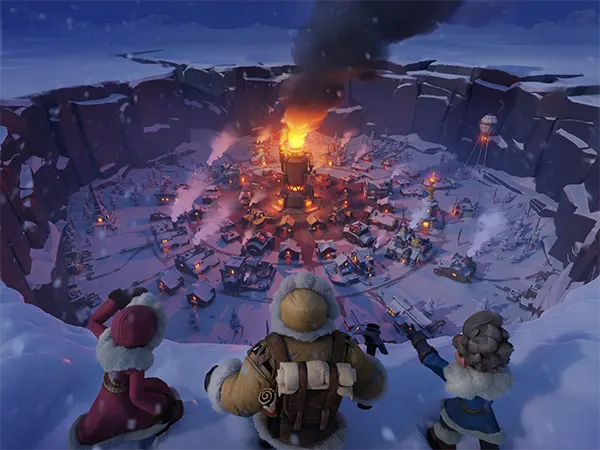
Gaming on PC enjoys higher graphics settings, high-resolution pixels, and better lighting, making the jammed landscape even more attention-grabbing.
The bigger display screen makes resource management and base strategy exponentially easier, and mouse-and-keyboard controls allow you to move through menus with ease and take tasks more efficiently than a touchscreen.
Once you’re set up on PC, pushing your city forward means investing in the right resources. For players looking to top up efficiently, LootBar is a reliable platform offering competitive rates on in-game currency.
You can grab your WOS Frost Star top-ups there without any overpaying through the default in-game store.
BlueStacks is the quickest, cleanest way to Whiteout Survival on PC in the year 2026. Solve your digitization settings, check your updated drivers, and if you are seeking a zero-hassle arrangement that executes better than any phone ever will.
