
In modern business of our times. a lot of things have become important and relevant for a productive workflow. A very small and very important one is PDFs. Teams use them for proposals, invoices, reports, contracts, application documents, product catalogues, and scanned records. They are central to a good workflow.
So when a PDF becomes too large to upload, it should be compressed. Recordenly. Some tools allow users to compress PDF online while processing the file locally in the browser.
read the blog to learn more details abouts PDF compressing.
A text-only PDF may be pretty small, but many business documents have high-resolution images, scanned pages, charts, diagrams, custom fonts, and other visual elements.
Common examples are:
The PDF format keeps these things together, but the resulting file can be hard to send or upload.
A large file may go over an email provider’s attachment limit, take longer to move, or be rejected by a customer portal. Compressing it can remove that block and preserve the same PDF format.
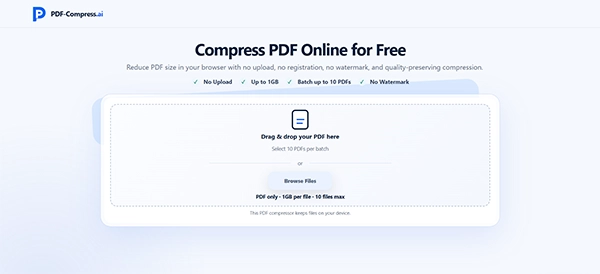
Many online document tools need users to upload a file to a far server before processing can begin. PDF-Compress.ai takes a different path by compressing locally in the browser.
This means the PDF does not need to be uploaded to a compression server just to lower its size.
Business records can have data that employees do not want to move without reason, such as:
Local processing can simplify these routine tasks by having compression operations on the user’s device.
Businesses must still follow their internal security, privacy, and compliance needs. Local processing does not replace company policies, but it can lower unnecessary file movement.
The smallest possible output is not always the best result. Stronger compression may lower file size a lot, but it can also affect the look of images, small text, and detailed charts.
PDF-Compress.ai has three compression levels so users can match the setting to the document.
Light compression is good when the document only needs a little size reduction and visual clarity is important.
It may be right for:
Balanced compression gives a middle ground between file size and visual quality.
It works well for everyday records such as internal reports, invoices, application files, and general office records.
Strong compression is used when file size is the main constraint. It may be good when a document must meet a strict upload limit or when the original has large scanned images.
The output should always be checked after stronger compression, especially when it has small text, signatures, diagrams, or photographs.
Email stays a typical way to exchange files with customers, suppliers, job applicants, and external partners. However, attachment limits can block the process when a PDF has many images or scanned pages.
A smaller file is easier to:
The goal does not always need to be a very small file. In many cases, the PDF only needs to be reduced just to pass an attachment or upload limit and stay readable.
Office work usually has groups of related files, not just a single document. An administrator may need to make many scanned invoices, and a recruitment team needs to organise many application documents.
Processing every PDF one by one adds repeated selection, compression, and download steps.
PDF-Compress.ai supports up to 10 PDFs in one batch. This lets users use the same compression workflow on many documents without restarting the process for each file.
Before downloading the results, users should make sure that every selected PDF belongs to the intended batch. Clear file names also make it easier to match compressed outputs with their original versions.
PDF-Compress.ai lets users select individual PDFs up to 1GB. This can be good for long scans, visual reports, and other documents that are much bigger than normal text-based PDFs.
But the selection limit should not be thought of as a guarantee that every 1GB file will process the same on every device.
Because compression works locally, results depend on things such as:
A complex PDF may need more resources than a smaller file with a simpler structure. If a very large document does not work easily, closing useless browser tabs or using a device with more available memory may help.
The tool is made for easy compression, not complex document editing.
A normal workflow is: Pick one or more PDF files.
No registration is needed, and the downloaded PDFs do not have an added watermark.
This keeps the process focused on the task itself without needing account creation or software installation.
Compression should lower file size without making the document hard to use.
Before sending or uploading the compressed version, check:
If important details come blurred or unclear, repeat the process with a lighter compression level.
Users should keep the original PDF until the compressed version has been checked and accepted. The original will still be needed for printing, editing, or future high-quality distribution.
Compression is only one part of a wider document workflow. It does not remove editing, access control, version management, backup, or long-term archiving.
Its role is very specific: making a PDF easier to move and store when the original file is larger than needed.
A good workflow may look like this:
Original PDF → Select compression strength → Compress locally → check output → Email, upload, or archive
This way works very well sometimes for document tasks that do not need a full PDF-editing suite.
Large PDFs can cause small but repeated waits in email, online submissions, document storage, and everyday collaboration.
PDF-Compress.ai solves this exact problem with local browser processing, three compression strengths, batch support for up to 10 files, large-file selection, and watermark-free output.
The best way is to pick the compression level according to the document’s purpose, check the result, and keep the original file until the compressed version has been approved.
Ans: Yes. PDF-Compress.ai is a free browser-based PDF compression tool and does not require registration.
Ans: Users can select up to 10 PDFs in one batch.
Ans: The tool provides Light, Balanced, and Strong compression settings. Users can choose according to the required file-size reduction and acceptable visual quality.
Ans: No. PDF-Compress.ai does not add a watermark to the compressed output.
Ans: Individual files up to 1GB can be selected. Actual processing performance depends on the file structure, browser, and available device memory.
