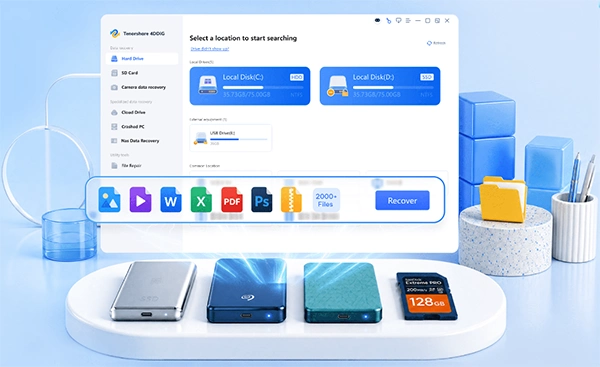
Windows file recovery saves the day when important files aren’t anywhere to be found. Have you accidentally deleted an important document, emptied the Recycle Bin, or lost photos after formatting a drive?
These situations are more common than you may think. The good news is that deleted files are not always gone. However, the first thing you should do is stop using the affected drive. Modern file recovery software can scan your device, locate recoverable files, and restore them easily.
In this guide, you’ll learn how to recover deleted files on Windows using both built-in tools and professional recovery software.
Many people think that pressing the Delete key permanently erases a file from their computer. In reality, that’s usually not what happens.
When you delete a document, Windows removes its reference from the file system rather than immediately destroying the actual data. The space occupied by the file is simply marked as available for new data. Until that space is overwritten, the original file often remains on the storage device.
This is why acting quickly is so important after data loss. Every new download, software installation, or copied file increases the chance that the deleted data will be overwritten.
Professional recovery software takes advantage of this process by scanning the drive for file trails and recoverable data that Windows no longer displays.
Data loss can happen for many reasons, including:
Fortunately, many of these situations still offer a good enough chance of recovery if you utilize the right method and avoid writing new data to the affected drive.
The following are the methods used to recover deleted files on Windows:
Before installing any recovery software, it’s worth checking whether Windows already contains a copy of your deleted files.
If you deleted a file normally, it probably went to the Recycle Bin.
Follow these steps:
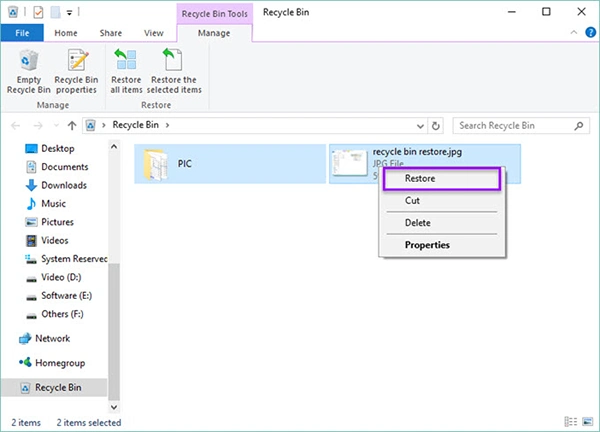
This is the quickest recovery method, but it only works if the Recycle Bin hasn’t been emptied.
If the File History option was turned on before the files were lost, Windows may have a backup available.
To restore files:
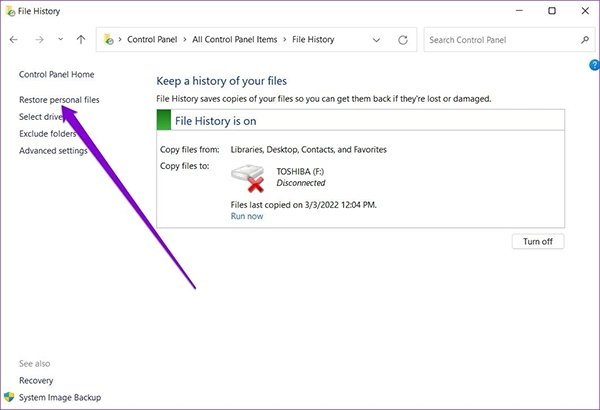
File History works well for documents, pictures, and other personal files, but it only helps if backups were created before the deletion occurred.
Windows also enables you to restore previous versions of folders if System Protection or File History was enabled.
Here’s how:
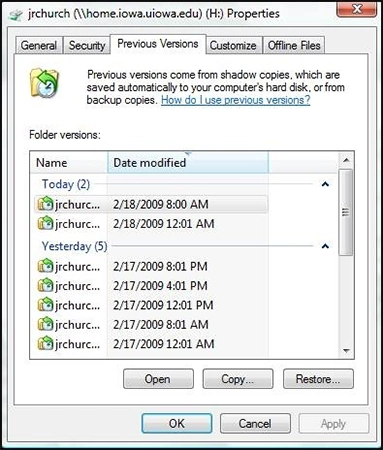
This method can recover previous versions of files or folders, but many users discover there are no previous versions available because the feature was never configured.
While these tools are useful, they have several limitations:
If none of these methods work, you’ll need dedicated file recovery software for Windows.
When built-in recovery options fail to do the job, specialized recovery software offers a much higher chance of retrieving permanently deleted files.
Unlike Windows recovery tools, professional software scans the storage device sector by sector to find deleted files that still exist on the drive but are no longer visible in Windows Explorer.
One reliable solution is 4DDiG Windows Data Recovery, which is created to recover files from various data loss situations with a straightforward and beginner-friendly process.
4DDiG Windows Data Recovery is a professional program to recover data from Windows computers and many other storage devices. It supports recovery from accidental deletion, formatting, partition loss, corrupted drives, virus attacks, and system crashes.
Some of its key features include:
Whether you’ve accidentally deleted family photos or lost important work documents, 4DDiG Windows Data Recovery provides an easy way to recover them without requiring advanced technical knowledge.
You can recover your deleted files with 4DDiG Windows Data Recovery in just a few simple steps.
Download, install, and open 4DDiG Windows Data Recovery. On the main screen, you’ll see all the available drives on your computer. Select the drive where your files were lost and click Start to start scanning.
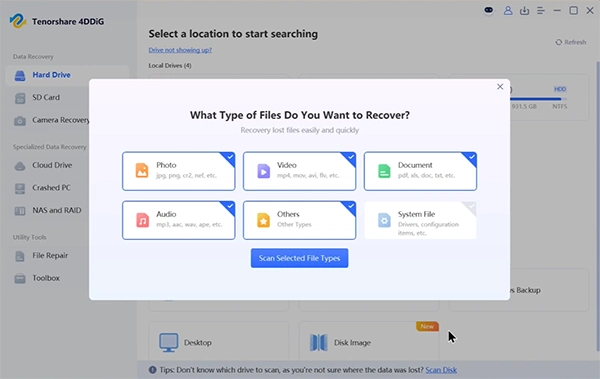
If you’re only looking for certain file types, such as photos, videos, or documents, you can select those before starting the scan. This can help speed up the scanning process.
4DDiG Windows Data Recovery will start scanning the selected drive right away. It locates deleted, lost, and missing files. If you find the files you need before the scan finishes, you can pause or stop the scan at any time.
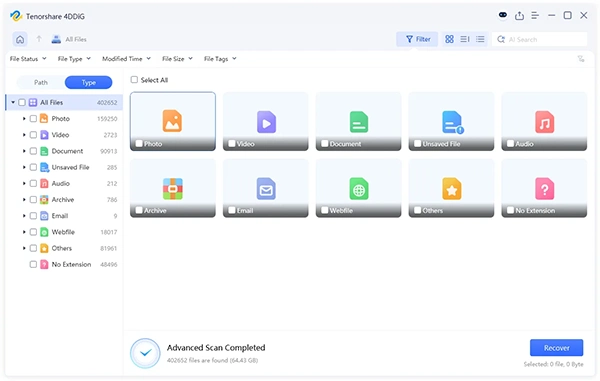
You can view the results in Path View to see the original folder structure or switch to Type View to browse files by category, such as Photos, Videos, Documents, Audio, and Emails. You can also use the Search box or Filter option to quickly find specific files.
Once the scan is complete, preview the files to ensure that they are the ones you want to recover. 4DDiG Windows Data Recovery lets you preview many file types, including photos, videos, Word documents, Excel files, PowerPoint presentations, and PDFs.
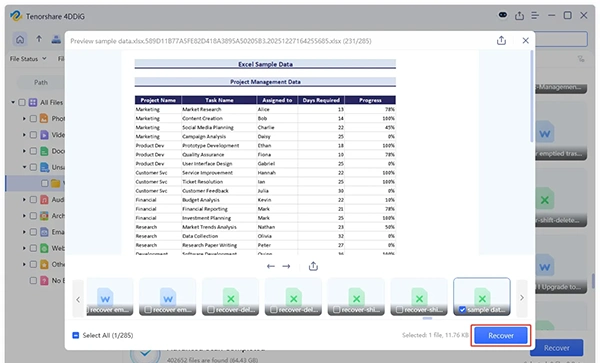
Select the files you want to recover, then click Recover. Save the recovered files to a different drive or storage device instead of the original location. This helps prevent other deleted files from being overwritten.
Recovering deleted files isn’t just about choosing the right software. The actions you take immediately after losing data can significantly affect whether your files can be restored successfully.
Here are some practical tips to improve your chances of successful Windows file recovery.
As soon as you notice your files are missing, avoid using the specific drive.
Remember that deleted files usually remain on the drive until new data replaces them. Every new file you save, download, or install increases the chance of overwriting the deleted data permanently. For example, if you accidentally deleted files from your C: drive, avoid installing large applications or downloading videos until you’ve attempted recovery.
This is one of the most common mistakes users make.
If possible, install your recovery software on a different drive or partition. Installing software on the exact same drive where your deleted files are located may overwrite the data you’re trying to recover.
For example:
Following this simple rule can noticeably improve recovery results.
After recovering your files, don’t save them back to the original drive. Rather, choose another destination, such as:
Saving recovered files to the original location could overwrite other files that haven’t been recovered yet.
While recovery software is extremely valuable, prevention is always better than recovery. Consider creating regular backups using:
Having multiple copies of important files means you’ll spend less time worrying about accidental deletion or hardware failure.
Not every recovery tool delivers the same results. Choosing the right program to recover data can make the difference between restoring your essential files and losing them permanently.
Here are the key features you should look for:
The software should be able to recover files from various data loss scenarios, including accidental deletion, formatting, partition loss, and corrupted drives. The better the recovery engine, the greater your chances of getting your files back.
Good recovery software should support a wide variety of file formats, including:
This allows you to recover almost every type of lost data without needing different tools.
A reliable file recovery software for Windows should work with:
This flexibility ensures you can recover files regardless of stored location.
Data recovery shouldn’t need technical expertise. A clean, beginner-friendly interface makes it easier to scan drives, locate deleted files, preview recoverable items, and restore them in just a few steps.
Previewing files before recovery is an important feature because it allows you to verify that the files are intact before restoring them. It also saves time by helping you recover only the files you actually require.
Professional recovery software performs read-only scans without modifying the original storage device. This safeguards your remaining data and helps maximize recovery success.
If you’re looking for a simple yet powerful recovery solution, 4DDiG Windows Data Recovery checks all the boxes.
It combines advanced recovery technology with a straightforward interface that’s best suited for both beginners and experienced users. Whether you’ve lost files because of accidental deletion, formatting, system crashes, partition issues, or corrupted storage devices, 4DDiG Windows Data Recovery can scan your drive thoroughly and identify recoverable data.
Another advantage is its preview feature. Before recovering anything, you can inspect supported files to ensure you’ve found the right ones. This saves time and gives you confidence before starting the recovery process.
The software also supports thousands of file formats and works with nearly all common Windows storage devices, making it a practical solution for both personal and professional data recovery requirements.
Losing important files doesn’t always mean they’re gone forever. In so many cases, successful Windows file recovery is possible if you act fast and avoid using the affected drive before recovery.
While Windows offers built-in recovery alternatives like the Recycle Bin, File History, and Previous Versions, these methods have limitations, especially when files have been permanently deleted or storage devices have been formatted. That’s where professional recovery software becomes the better choice.
4DDiG Windows Data Recovery makes recovering lost files, photos, videos, emails, and other files simple, even for beginners. It can scan a wide range of storage devices, preview recoverable files, and restore your critical data through an easy step-by-step process.
If you’re looking for a safe and reliable way to recover deleted files on Windows 10 or Windows 11, 4DDiG Windows Data Recovery is a practical solution worth considering.
Ans: Yes. Permanently deleted files often remain on the storage device until they’re overwritten by new data. That’s why it’s important to stop using the affected drive as soon as possible and use reliable recovery software to scan for recoverable files.
Ans: The best recovery software should offer a high recovery success rate, support many file types, work with different storage devices, provide file previews, and be easy to use. 4DDiG Windows Data Recovery includes all of these features, making it a dependable choice for recovering deleted or lost files on Windows.
Ans: Yes. 4DDiG Free Data Recovery Software allows you to recover files while scanning, with up to 500MB of recovery on Mac and up to 2GB on Windows. This gives you a clear preview of recoverable data before you commit to an upgrade.
Ans: Recovery time depends on several factors, including the size of the storage device, the number of deleted files, and the type of scan being performed. A quick scan may finish within a few minutes, while a deep scan of a large drive can take considerably longer but usually finds more recoverable files.