
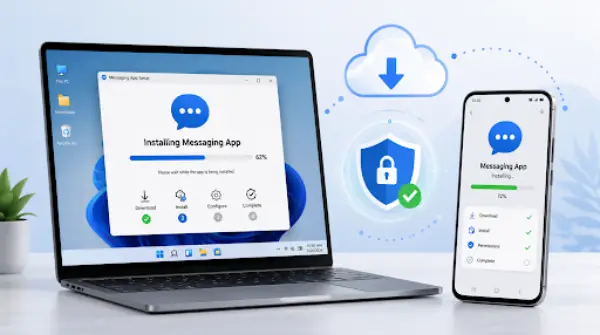
Today, messaging apps have become an integral part of daily communication. Whatever you are chatting with friends, working, managing groups, or sharing some files. Because many applications are available on both the Android phone and Windows PC, it is important to download the right version.
However, online searches can bring official sites as well as third-party download pages, advertisements, and mirrors. One wrong choice can lead to safety or security issues. The better approach is to identify the developer, choose the correct version, and review the settings before installing it.
This guide provides some simple steps for safely installing messaging apps on Windows and Android.
Before installing any messaging application, identify where the installer is coming from.
A legitimate software page will be able to give enough information about the application that is being offered, such as what platforms are supported and which version is currently available. The website should also use HTTPS and provide a consistent domain rather than repeatedly redirecting visitors through unrelated download pages.
Users searching for a desktop version of a communication application can consult a Potato电脑版下载指南 as part of the process of checking which version is appropriate for Windows.
However, the same principle applies to any messaging platform: verify the source before installing the file.
Useful details to check include:
If a download page provides no clear information about the application or its developer, it is better to search for a more reliable source.
A frequent error made by users during the installation process involves assuming that one download file can work for all devices.
Windows and Android use different installation formats and software distribution systems.
On Windows, apps may be distributed through files such as:
Android applications are normally installed through an application marketplace or, in some cases, through an APK file.
An APK cannot be installed directly as a normal Windows app, while a Windows executable cannot run as a native Android application.
This distinction becomes especially important when a messaging service supports several platforms. A download page may display multiple buttons for desktop, Android, iOS, or web access. Users should confirm their device type before selecting an installer.
For Windows computers, also consider whether the operating system is compatible and whether the application requires a particular Windows version or processor architecture.
After installing an installer, users should avoid opening it immediately.
Take a few seconds to confirm basic information about the file.
On Windows, check:
An installer file that has an unusual filename or unusual extension deserves additional attention.
Windows may display security prompts when an app requests permission to make changes to the computer. These prompts should not be approved automatically. Verify that the publisher and application correspond to the software you intended to install.
Android users installing software outside the default app marketplace should be even more careful. APK files obtained from unknown sources may have been modified after the original developer released them.
In general, official stores and verified publisher websites are preferable to anonymous file-hosting services.
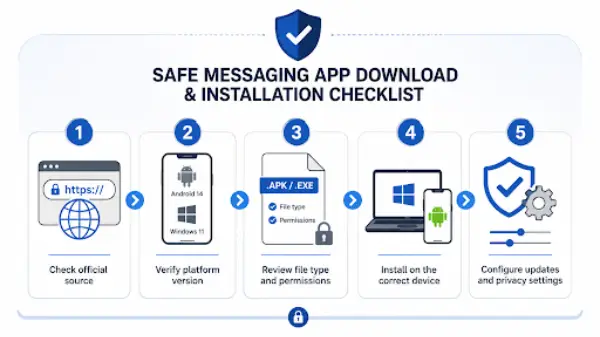
A practical checklist for verifying software sources, versions, permissions, and installation settings.
Messaging apps legitimately need permission to use certain device features, but users should still understand why each permission is requested.
Depending on the app, common permissions can include:
Camera and microphone permissions are required for conducting video or voice chats. File access may be needed for sending documents or saving received media.
There may be some additional permissions required.
Android makes it relatively easy to review permissions from the device settings. Instead of granting every permission during initial setup, users can enable features only when they are actually needed.
Windows users should also review whether the app starts automatically with the computer, runs continuously in the background, or adds unnecessary startup processes.
Reducing unnecessary permissions can improve both privacy and system performance.
Even legitimate applications can occasionally fail to install.
Several common issues can usually be resolved without downloading another installer from an unknown website.
Messaging apps may appear lightweight initially, but cached photos, videos, documents, and voice messages can consume significant storage over time.
Before installation, make sure the device has enough free space for both the software and future app data.
Older versions of Windows or Android may no longer support the newest release of an application.
Check system requirements before repeatedly attempting installation.
An interrupted connection can occasionally produce an incomplete installer.
If the file will not open or the installation repeatedly fails, delete the damaged file and download a fresh copy from the verified source.
Android normally restricts installation from unknown sources.
If an application must be installed manually, the system may request permission for the browser or file manager to install external apps.
This permission should be enabled only when necessary and disabled again if it is no longer required.
Windows may block an unfamiliar or unsigned installer.
Instead of immediately bypassing the warning, verify the publisher and download source first.
Security warnings are not always proof that a file is malicious, but they should not be ignored.
Users tend to maintain an installer file and use the same after some months. That may not be the best approach.
Messaging software changes regularly. New releases can include security patches, compatibility updates, interface improvements, and bug fixes.
Keeping track of a verified Potato官方下载入口 can make it easier to check the current release instead of relying on an old installer stored on a local drive.
The same habit is useful for other applications as well.
Bookmarks can allow users to save a verified source, which can help users avoid searching for a new download site every time they replace a device or reinstall the operating system.
It also makes it easier to compare the installed version with the currently available version.
Installing the app is only the first step.
Messaging apps can generate substantial amounts of data after installation, particularly when users participate in active groups or receive large media files.
Review automatic download settings for:
On a phone with limited storage, automatically downloading every video or document can quickly consume available space.
On Windows, downloaded files may accumulate in the Downloads folder or an application-specific directory.
Users who regularly transfer large documents should consider choosing a dedicated folder that is easy to review and clean.
Notifications are also a very crucial and important part of initial configuration.
The default settings of a messaging app may display:
This can be useful on a personal device but inappropriate on a shared computer or a phone frequently visible to other people.
Consider disabling message previews on lock screens or shared Windows desktops.
For large groups, individual notification settings can also help prevent constant interruptions without completely muting important conversations.
It is easier to use the same messaging account on the phone and computer; however, this adds extra active sessions.
After installing a desktop version, review the account’s active devices or sessions if the app provides such a feature.
Remove devices that:
Users should also activate any available account security features, such as a strong password, two-step verification, or device approval.
This is particularly important for messaging accounts because access may expose private conversations, contact information, files, and group memberships.
Installing a messaging app on a workplace, public, family, or temporary computer will require extra precautions.
A user might log out of the application while downloaded files remain stored locally.
Before leaving a shared computer:
Simply closing the application window does not necessarily end the account session.
An installation procedure is simpler to perform when reduced to a short checklist.
After installing a messaging app, verify the following:
These steps take only a few minutes but can prevent many common problems later.
Installing a messaging app safely is not simply a matter of finding an installer and clicking “Next.”
The complete process includes verifying the software source, selecting the correct operating-system version, checking permissions, understanding security warnings, managing downloads, and reviewing active sessions after installation.
Windows and Android users face slightly different installation processes, but the same principle applies to both platforms: software should come from a source that can be verified, and users should understand what the application is doing on their device.
In addition, the proper installation procedure will make it easier to update the application later on. If users know where the software originates and how it stores data, sends notifications, and interacts with accounts, updating it will become easier.
Ans: Use the official Google Play Store or App Store platforms. It checks apps for viruses and bad software.
Ans: No. APK files from random websites can hide harmful viruses or spyware on your phone.
Ans: Look at the app permissions before you install. A messaging app should not ask for access to your text messages or photos if it does not need them.
