
In many tech forums, the “The disk structure is corrupted and unreadable” error is frequently discussed among Windows users. This frustrating problem usually appears when trying to access an external hard drive on a Windows PC. If you’re dealing with the same issue, don’t panic or rush to click the “Format” button. Sometimes, hardware damage isn’t the only reason behind this error. With the right tools and methods, there’s a good chance you can fix the problem yourself and regain access to the affected drive.
When your hard drive becomes inaccessible due to the “The disk structure is corrupted and unreadable” error, data recovery should be your top priority. This is because formatting the disk or repeatedly attempting random fixes can overwrite existing data. Losing important files just to fix the error is simply not worth the risk.
Fortunately, tools like 4DDiG Data Recovery can help extract data from inaccessible or logically corrupted drives with a high success rate. This data recovery software supports a wide range of storage devices, including SSDs, HDDs, USB flash drives, and memory cards. More importantly, it’s easy to use, even for users with no technical background. Here’s an example of how to use Tenorshare 4DDiG to recover data from your unreadable drive:
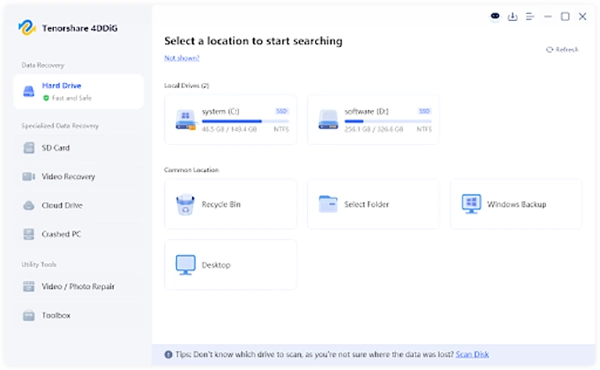
Step 1: After installing and opening 4DDiG, you’ll be taken to the main interface where all available drives are displayed. Then, move your cursor over the inaccessible hard drive. A Scan button will appear—click to continue.
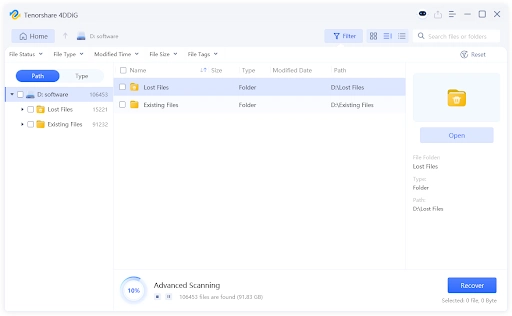
Step 2: During the scanning process, recoverable files start appearing in real time. These files are automatically organized by Path or File Type, making it easier to browse through the results.
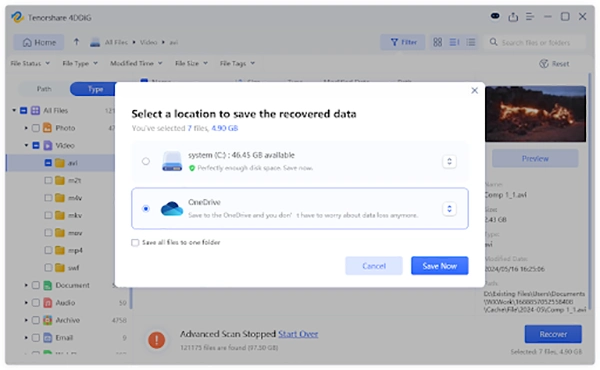
Step 3: Once you’ve found the files you need, you can preview them to make sure they’re intact. When everything looks good, select the desired files followed by clicking on the Recover button. You’ll be prompted to choose a safe location to save them. In addition to local storage, 4DDiG also supports saving recovered files directly to OneDrive or Google Drive.
Although it may seem too simple, reconnecting the drive is often the very first thing you should do when facing the “The disk structure is corrupted and unreadable Windows 11/10” error. The steps themselves don’t need much explanation, but one thing is worth emphasizing: always use the “Safely Remove Hardware” option when disconnecting an external drive.
If you’re using a desktop PC, plugging the drive into a rear USB port can sometimes make a difference, as these ports typically provide more stable power. It’s also a good idea to take a closer look at your USB cable.
Incompatible or buggy disk drives can be the culprit behind the “disk structure is corrupted and unreadable external hard drive” error. In such situations, you can try reinstalling the disk drive through Device Manager. The detailed steps are as follows:
Step 1: Open Device Manager, locate the affected drive under the Disk drives section.
Step 2: Right-click on it and pick the “Uninstall device” option from the menu.
Step 3: After that, restart your computer.
CHKDSK is one of the most useful built-in tools in Windows, primarily designed to detect and repair logical errors on a drive. If you’re not comfortable using this command-line tool, Windows also offers a more user-friendly way to get the job done. Here’s how to fix the “The disc structure is corrupted and unreadable” error with the aid of Check Disk:
Step 1: First, open File Explorer by pressing Win + E. Locate the inaccessible drive, right-click on it and choose “Properties.”
Step 2: Switch to the “Tools” tab. Then, tap “Check.”
Step 3: Once the repair process is complete, check if your drive is accessible again.
If the error message “disk structure is corrupted and unreadable” still pops up, the next step you should try is to run the Hardware and Devices Troubleshooter. To do so:
Step 1: Press Windows + R to open the Run dialog box, then write “msdt.exe -id DeviceDiagnostic” and click “OK.”
Step 2: Once the tool starts, tap “Next” to fix potential hardware communication problems.
Viruses or malware can cause various frustrating disk problems, and the “disk structure is corrupted and unreadable external hard drive” error is one of them. If you’re not sure whether your disk has been infected, it’s best to run a full scan right away. You’re free to use any antivirus software you trust, but for most users, the built-in Windows Security is more than enough. Here’s how to use it:
Step 1: Start by connecting the problematic drive to your computer. Type “Windows Security” into the taskbar search box, and then click the app from the search results.
Step 2: Once it opens, select “Virus & threat protection” from the main dashboard.
Step 3: Next, choose “Full scan” and click” Scan now.
Step 4: Once the scan is complete, Windows Security will notify you if any threats are found. Follow the on-screen instructions to remove them.
Still looking for a “the disk structure is corrupted and unreadable” fix? Storage devices are consumable hardware, and even with proper use, they don’t last forever. They’re also more fragile than many people realize—a simple drop onto the floor can be enough to cause physical damage.
Some common signs include unusual clicking noises, frequent disconnections, or extremely slow performance. If the “The disk structure is corrupted and unreadable Windows 11/10” error is related to hardware failure, the safest option is to stop using the drive and have it checked by a professional repair service.
No. Changing the drive letter will not fix the “The disk structure is corrupted and unreadable” error. A drive letter is simply a label assigned to a storage device so that Windows can detect and access it. Reassigning the letter doesn’t repair disk errors the way tools like CHKDSK do.
Sometimes, formatting the drive can work wonders, but it’s not guaranteed. If the disk is severely damaged, you may get an error message like “Windows was unable to complete the format” when attempting to format it.
Disk structure corruption often feels like a sudden problem, but in reality it usually develops from small, everyday mistakes. Here are some practical tips that can help you avoid the “The disc structure is corrupted and unreadable” error in the future:
In this blog post, we’ve outlined six practical ways to fix the “disk structure is corrupted and unreadable” error. Since this issue can be caused by different factors, it’s often difficult to pinpoint the exact reason right away. That’s why it’s best to start with the simpler solutions and work your way through them one by one. For users who need to recover files from an inaccessible drive, tools like Tenorshare 4DDiG offer a simple and viable option.
